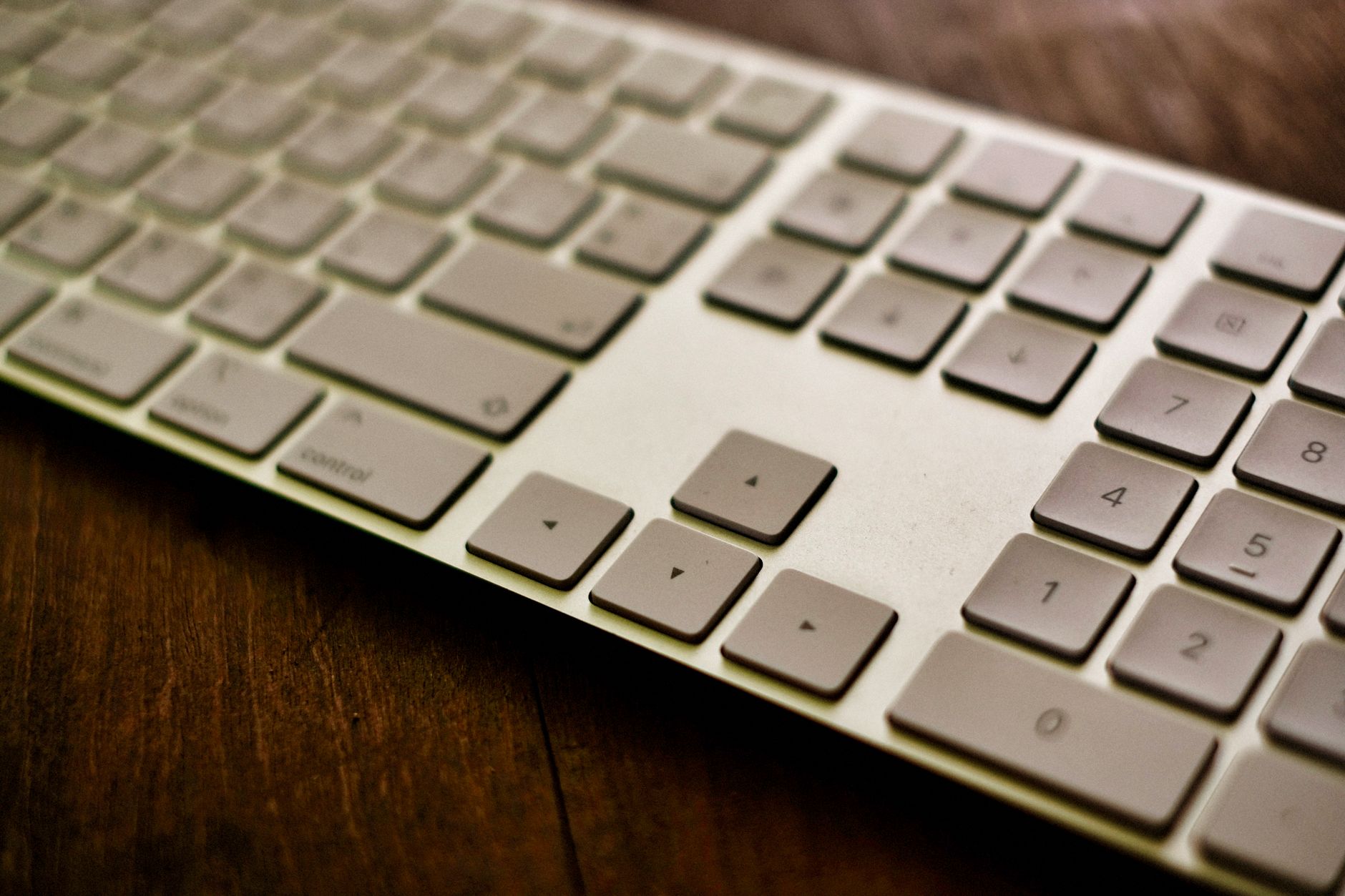
The best keyboard is the one that removes the biggest daily friction.
Eight hours of spreadsheets can make a loud, fast gaming board feel like a poor trade; a cramped train table can make a full-size layout impossible. Start with the non-negotiable. For sustained desk work, key spacing, wrist angle, and a numpad may matter more than switch speed. For games, low-latency 2.4 GHz wireless or a wired connection, stable switches, and a compact layout keep essential keys close. For commuting or shared devices, weight, battery life, quiet keys, and rapid multi-device switching take priority. A single board can overlap these needs, but the dominant use case should decide the compromise.
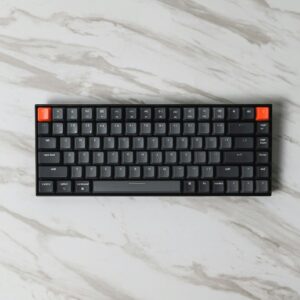
- A 75% layout keeps function keys and arrows while saving substantial desk width.
- Bluetooth is convenient for tablets; 2.4 GHz is generally the stronger choice for latency-sensitive play.


Set Three Non-Negotiables, Then Allow Two Trade-Offs
-
Match the keyboard to the dominant task
Long writing and spreadsheets reward a stable layout and comfortable angle; competitive gaming rewards low-latency wired or 2.4 GHz input. This is the first non-negotiable, not switch color or RGB.
PrioritizeA design that supports the activity performed for most of the day.DeprioritizePaying for gaming speed on a keyboard mainly used for documents. -
Protect the keys and layout that work requires
A numpad matters for frequent data entry, while navigation clusters, function keys, and local-language legends can be essential in development or office software. Confirm macOS or Windows modifier placement and remapping support before buying.
PrioritizeEvery frequently used key, plus an OS layout that feels natural.DeprioritizeA compact layout that turns routine shortcuts into layers or awkward chords. -
Fit the desk, bag, and connection setup
Desk depth, shared-device switching, and travel weight decide whether full-size, TKL, 75%, or compact boards remain practical. Bluetooth suits low-cable mobility; wired or 2.4 GHz is safer where latency and reliability matter.
PrioritizeThe smallest size and simplest connection that still meet daily needs.DeprioritizeA full-size board that crowds the mouse area or a wireless mode unsuited to the workload. -
Spend compromises where they hurt least
Two concessions are usually reasonable: accepting a less premium case or fewer lighting effects, and choosing moderate rather than silent noise. Do not compromise on painful layout omissions, unstable connectivity, or a budget that excludes a usable return policy.
PrioritizeSavings in cosmetics and nonessential refinement.DeprioritizeCheapness that sacrifices comfort, required keys, or dependable operation.
Choose the keys that earn their space
A full-size board keeps the function row, navigation cluster, arrows, and numpad in dedicated positions. That matters when work involves frequent Excel entry, accounting software, CAD commands, or desktop shortcuts that rely on Home, End, Page Up, and Page Down. It also suits anyone who uses the numpad by touch rather than looking down.
The distinction is not whether numbers appear occasionally, but whether they arrive in runs. Typing a phone number, password, or a few cells does not justify 17 permanent keys. Entering hundreds of values, using calculator-style software, or building formulas with +, -, *, and / often does. For a closer test of that divide, see when spreadsheet work truly benefits from a numpad.
Tenkeyless (TKL) boards remove only the numpad, preserving the keys most desktop workflows expect. They create useful mousing room: the right hand travels less between keyboard and mouse, a meaningful advantage in shooters, design tools, and long editing sessions. For many mixed work-and-gaming setups, TKL is the least disruptive downsizing step.
Treat layers as a real cost
A 75% layout keeps arrows, a function row, and most navigation controls in a tighter footprint, though their positions vary by model. A 65% board usually retains arrows but moves navigation onto an Fn layer; a 60% often layers both navigation and function keys. The practical differences in a 60% and 75% layout comparison are larger than their dimensions suggest.
Layers work well for rare commands—media control, Print Screen, or F-keys used once a week. They become friction when a command must be held, repeated, or used without breaking concentration. Programmers who live in terminals may need Esc, symbols, and arrows immediately available; spreadsheet users may depend on navigation keys; mouse-heavy games usually reward a smaller board, provided the game does not require F-key binds.
Before buying compact, list the keys used daily and test whether each replacement is one reliable chord. If a required action means remembering a custom layer, moving a hand, or pausing to confirm the legend, those keys are not genuinely replaceable.
Pick the switch style, not the hype
Mechanical boards use an individual switch beneath each key. They offer the widest choice of weight, travel, tactility, acoustics, and replaceable parts; hot-swap models make switch replacement especially easy. Good switches commonly survive 50–100 million presses, but the taller key height can put wrists into extension unless the desk, chair, or a palm rest is set well. For many desks, the question is simply whether a mechanical board earns its extra cost, noise, and space.
Low-profile mechanical boards retain discrete switches but shorten key travel and reduce front height. They feel quicker and sit more naturally on a shallow desk, though switch and keycap choices are usually more limited, and serviceability varies by model.
Scissor-switch keyboards—common on laptops and slim office boards—have short, stable travel, quiet operation, and a low fatigue profile for light to moderate typing. They are inexpensive and portable, but typically sealed: a failed key often means replacing the board.
Membrane boards use rubber domes over a circuit sheet. They are the cheapest, spill-tolerant option and can be pleasantly soft, yet feel less precise and tend to lose consistency as domes age. They suit shared spaces and low-stakes setups; mechanical is a preference, not a universal upgrade.
Tactility describes the bump; noise comes from the whole keyboard.
A tactile switch can be quiet with damped stems and good lubrication, while loose stabilizers, a hollow case, and hard bottom-out can make any switch clatter.
Smooth travel may suit rapid repeated inputs, but speed depends on actuation, skill, and comfort.
Light linears can invite accidental presses; a tactile bump may give clearer control for typing-heavy games. Rapid-trigger features matter more than switch shape in compatible keyboards.
Their shorter travel and shallower keycaps create a distinctly different feel.
They can reduce finger movement and pack well for travel, but offer less cushioning at bottom-out and fewer keycap or switch options.

Choose the connection that fits the day
A wired USB keyboard remains the safest choice for a fixed desk, competitive gaming, and tightly managed work computers. It has no battery or wake delay, delivers consistently low latency, and is most likely to work before drivers or pairing permissions are available.
Bluetooth is not the same as 2.4 GHz wireless
Bluetooth uses the computer’s built-in radio, so it is ideal for travel and for switching among a laptop, tablet, and phone without occupying a USB port. Many keyboards store two or three Bluetooth pairings behind dedicated device-switch keys. Its trade-offs are occasional wake-up lag, variable behavior across operating systems, and corporate policies that may disable Bluetooth pairing.
2.4 GHz wireless uses a keyboard-specific USB receiver. It generally offers lower, steadier latency and a more responsive feel than Bluetooth, making it the stronger cable-free gaming option. The receiver still needs an allowed USB port; locked-down machines may reject it.
For mixed work and personal setups, a tri-mode model—USB, Bluetooth, and 2.4 GHz—avoids compromises. Battery claims should be read with backlighting in mind: bright RGB can reduce runtime from months to days. A travel keyboard benefits from Bluetooth; a desk keyboard benefits from keeping a cable or receiver permanently connected.
The keyboard that disappears into work
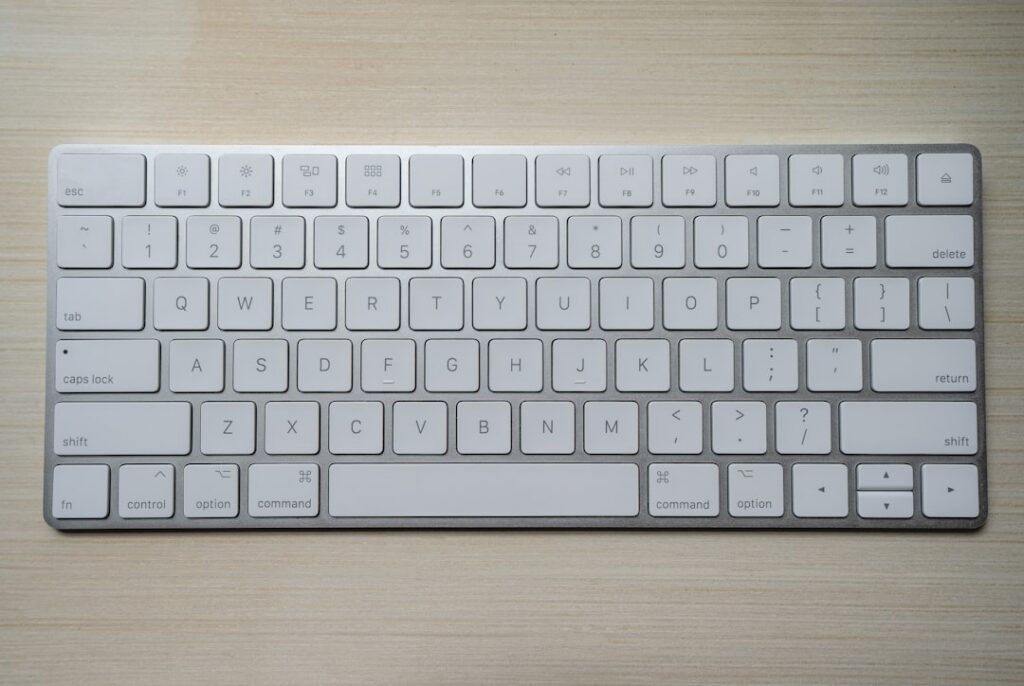
A work-first keyboard earns its place by becoming unremarkable: the right shortcuts are available without hunting, navigation keys behave predictably, and the legends remain legible through a long spreadsheet or code review. A restrained finish and adjustable, preferably dimmable, backlight are often more useful in shared offices than aggressive RGB effects.
Make daily software easy to drive
For office suites, creative tools, terminals, and remote desktops, dedicated arrows, Home/End, Page Up/Down, and a function row matter more than a fashionable small footprint. A numpad remains worthwhile for recurring financial or data-entry work; otherwise, a TKL leaves useful mouse space. Wired operation is the safest choice on locked-down corporate machines, where Bluetooth pairing, driver installation, or wireless receivers may be restricted.
Ergonomics need adjustment, not just angle
Remapping is valuable only when it survives the work environment. Hardware remapping and onboard memory retain layers and shortcuts without background software—important on managed Windows PCs and when moving between macOS and Linux. Check Mac modifier support and whether the chosen layout can switch systems without a utility.
A basic flip-out foot merely raises the rear edge; it can increase wrist extension. Useful tenting lifts the keyboard’s inner edges to reduce forearm rotation, ideally with several stable angles. Split layouts add reach reduction, but they need enough desk depth and time to relearn. A broad palm rest should support the heel of the hand between typing bursts, not encourage resting weight while pressing keys.
Best for all-day ergonomic office work
Its curved split frame, pillowed wrist rest, and adjustable palm lift are designed to reduce wrist bending. It includes a numpad, pairs with multiple devices, and supports Windows, macOS, Linux, and ChromeOS; its two-year claimed battery life suits a low-maintenance desk setup.
Gaming speed or travel ease?
A gaming keyboard should make every press predictable. Wired USB or a dedicated 2.4 GHz receiver is preferable for competitive play: both avoid the variable response and occasional interference associated with Bluetooth. A compact 75% or TKL layout also opens valuable mouse space for low-sensitivity aiming, provided its function layer does not hide commands used in-game.
Switches are only part of the feel. Stable large keys matter just as much: a rattly Space, Enter, or Shift can feel inconsistent during repeated inputs and becomes tiresome quickly. Look for well-lubricated stabilizers, solid keycap fit, and onboard profiles that retain remaps and lighting without requiring background software.
Travel reverses the priorities. A board that is merely compact can still be awkward in a bag if it is thick, heavy, or lacks a protective sleeve. Battery endurance, quiet keys, easy device switching, and a layout that works across laptop, tablet, and phone often matter more than polling rate.
A dual-purpose board is possible, but compromises are real:
- 75% wireless mechanical: capable for games and travel, yet noticeably heavier and louder than a slim Bluetooth model.
- Bluetooth-only portable keyboard: excellent for switching devices and packing light, but not the first choice for latency-sensitive gaming.
- Tri-mode connectivity: the most flexible option—use 2.4 GHz or cable for play, Bluetooth away from the desk—but it adds cost, weight, and charging to manage.
For frequent travel, measure the board with its case and include the receiver, cable, and charger in the carry weight. Those small extras decide whether a keyboard actually leaves the desk.
A flexible 75% mechanical option
The F75 Pro combines USB-C, 2.4 GHz wireless, and Bluetooth 5.0, with switching for up to five devices. Its 4,000 mAh rechargeable battery, hot-swappable switch sockets, pre-lubed stabilizers, knob, and RGB make it a stronger gaming-and-home choice than an ultra-light travel board.
Verify the exact keyboard, not the listing image
-
Inspect the real key map
Open the layout diagram for the exact SKU. Check whether ANSI or ISO matches the desk, plus Enter, left Shift, key count, and regional legends; stock photos are often reused.
-
Measure the footprint
Compare width, depth, front height, and weight with the available desk, tray, sleeve, or bag—not just the product’s size category.
-
Confirm OS behavior and remaps
Check Mac/Windows legends, media shortcuts, software support, and whether remaps save onboard for managed or shared computers.
-
Audit wireless and power details
Verify Bluetooth device slots, 2.4 GHz receiver inclusion and storage, cable type and length, charging port, and usable battery life with backlighting enabled.
-
Read the way out
Check warranty coverage by region, return window, restocking fees, and whether opened accessories can be returned.
Regional versions may change legends, layout, receiver bundle, switch options, and even battery capacity. The order confirmation should name the exact layout and variant, not merely the family name.
For office work, prioritize the layout, switch feel, and posture that remain comfortable through a full day. For competitive games, choose a stable board with wired or 2.4 GHz input and dependable key rollover. For travel, favor a slim, protected keyboard whose battery, pairing, and layout tolerate constant packing.
Before ordering, check the exact dimensions, receiver requirements, OS legends, remapping limits, and return window. The best model is not the most feature-rich; it is the one whose compromises never interrupt the intended routine.