
Portable gaming can turn into a surprisingly awkward pile of cables, bricks, and cases.
A 16-inch laptop slips into a backpack; its 280 W power brick, mouse, headset, stand, and protective shell can turn that same bag into an airline-scale problem. The useful accessory is the one that solves a constraint where the machine is actually used.
At a fixed desk, a powered dock, external display, and full-size mouse may earn their space. In a dorm, security and quiet cooling matter more. Daily commuters benefit from a slim sleeve and compact GaN charger—if the laptop supports USB-C PD at a meaningful wattage. LAN attendees need durable cable management and a mouse that survives crowded tables; flyers should prioritize battery-friendly peripherals and a carry-on-safe charger. Buying every “essential” accessory is the fastest way to make a portable setup less portable.
What each setting really needs
- Permanent desk Favor cable management, a stable stand, and a dock with enough display bandwidth over decorative cooling gear.
- Dorm room Choose a lockable bag, spill-resistant peripherals, and a compact power solution; shared rooms punish clutter.
- Commute A padded sleeve, short charging cable, and lightweight mouse protect both shoulders and ports.
- LAN or flight Pack rugged essentials, labeled cables, and a wired fallback. Venue Wi-Fi and spare ports are never guaranteed.
Start with the constraint, not the accessory
-
Fix the limiting factor
Buy for a repeatable pain point: cramped controls, blocked vents, weak audio, insufficient ports, or an awkward external display. An accessory without a named problem quickly becomes luggage.
Worth buyingOne clear annoyance removed every time the laptop is used.Usually a skip“Nice to have” gear with no regular use case. -
Verify fit, power, and bandwidth
Check the laptop’s port versions, USB-C power-delivery limits, display outputs, and charging-wattage requirement. Also measure desk depth, monitor-arm clearance, and cooling-pad footprint before ordering.
Worth buyingSpecifications that match the exact laptop and available space.Usually a skipA dock, charger, or stand chosen by connector shape alone. -
Match controls to the games played
A mouse and compact keyboard suit shooters and strategy games; a controller suits platformers, racers, and many action titles. Low-latency wired gear matters most for competitive play, not every genre.
Worth buyingControls that improve the games actually played.Usually a skipDesktop-style peripherals bought for games that rarely benefit. -
Price the travel penalty
Count the accessory’s cables, power brick, case volume, and setup time—not just its weight. A single versatile USB-C hub can replace several adapters, but only if its display and charging limits are sufficient.
Worth buyingCompact gear that earns its space on frequent trips.Usually a skipBulky duplicates and proprietary cables that complicate packing.
Controls that improve play
For shooters and strategy games, a mouse is the clearest upgrade. Controllers matter more for racers, platformers, and sports titles. Choose an established optical sensor with reliable tracking at the intended sensitivity. Great specifications cannot fix a shape that fights palm, claw, or fingertip grip.
A 1,000 Hz polling rate is enough for most laptop setups. Higher rates can aid competitive play on high-refresh displays, but draw more battery and sometimes CPU time.
Wireless 2.4 GHz is the gaming mode. Keep its tiny receiver with the mouse, not loose in a bag. Bluetooth saves a port and stretches battery life, but its added latency suits work and slower games better; Bluetooth mouse gaming trade-offs deserve a closer look.
A 65% keyboard frees mouse room. Tenkeyless keeps navigation keys, while full-size suits number-heavy sims. Controllers earn space for analog movement and triggers, not as universal replacements.

With an AA lithium battery, Razer rates the Orochi V2 for up to 425 hours on HyperSpeed. Its USB receiver nests inside the shell.
Bluetooth reaches a claimed 950 hours. HyperSpeed 2.4 GHz is the better connection for games.
Comfort is part of performance
A laptop’s built-in controls force the screen, keyboard, and trackpad into one fixed arrangement. Over a long match, that can mean bent wrists, a lowered chin, and a mouse arm held too far to the side—small compromises that erode aim and focus.
An external keyboard lets the hands sit lower and straighter; compact 60% or 75% boards also leave more room for the mouse. Raise the laptop on a stable, vent-friendly stand until the top of the display is near eye level, then use the external keyboard and mouse below it.
Keep the mouse close enough that the upper arm stays relaxed rather than reaching outward. A larger pad supports low-sensitivity aiming without repeatedly lifting the mouse. RGB, wrist rests, and elaborate desk mats are optional; neutral wrist angles and an adjustable screen are not.
- Wrist ache: separate keyboard from the elevated laptop.
- Neck stiffness: raise the display, not the chair alone.
- Shoulder fatigue: reduce mouse reach and desk clutter.
Audio that fits the laptop and the session
A headset is only simple when its plug matches the laptop. A 3.5 mm combo jack accepts a four-pole headset plug carrying audio and microphone. Two separate headphone and mic sockets need a splitter. Check this before buying, especially on older machines.
USB headsets avoid analog-jack quirks, but occupy a valuable port. A wired USB model may need an adapter or hub beside a mouse receiver and external drive. Wireless dongles also deserve a clear port. Bluetooth is convenient for travel, though a USB dongle generally gives more dependable game and voice-chat timing.
For long sessions, fit outweighs most sound-mode marketing. Look for:
- Moderate clamp force that stays secure without sore temples.
- Deep ear cups so ears do not press against the driver baffle.
- Closed-back isolation for noisy rooms, or breathable pads for hot, quiet spaces.
- A detachable or retractable boom mic for packing and better voice pickup than an inline mic.
In-ear sets pack smallest and avoid headband pressure. They can become tiring if tips are wrong, and their inline microphones pick up more cable noise. Over-ear headsets take more bag space but remain the better choice for hours of team communication.

These wired in-ears save space in a crowded travel bag. The listing includes inline controls and a dual-microphone design.
Its supplied splitter targets older PCs with separate audio and microphone ports. Confirm plug and adapter compatibility before relying on it for chat.
- Connection
- Wired
- Driver
- 10 mm
- Microphone
- Dual mic
- Price
- ~$25

Power without unpleasant surprises
The original AC adapter is the performance charger. Gaming laptops commonly need 180–330 W, delivered through a model-specific barrel or proprietary connector; a physically similar plug can still have the wrong voltage, polarity, or current rating. For a replacement, match the laptop maker’s required wattage and connector exactly—higher-rated wattage is acceptable only when voltage and connector are confirmed compatible.
USB-C Power Delivery is usually a fallback, not a gaming-power substitute. A PD-capable port may accept 65–100 W for browsing, schoolwork, or a slow charge while asleep. Some newer machines accept 140 W or more, but only with the required PD profile, charger, and e-marked cable. Under a game load, an undersized PD source can trigger battery drain, reduced CPU/GPU limits, or repeated connect-disconnect cycles.
For international trips, read the brick label: 100–240 V, 50/60 Hz means it needs only a region-appropriate plug adapter, not a voltage converter. Pack the grounded cable or adapter that fits the charger’s inlet and the destination socket.
Check that the laptop supports USB-C PD input, then match its accepted wattage and profile. A large-capacity bank without the right output will not run the laptop reliably.
Keep heat under control
Start with the free checks: place the laptop on a hard, flat surface, keep every intake and exhaust vent clear, and remove dust from the grilles with a soft brush or compressed air used carefully. Bedding, laps, and thick desk mats can choke bottom intakes within minutes.
Raise the rear edge with a vent-friendly stand or small feet. This creates a cleaner intake path, and on most bottom-breathing laptops it helps more than a pad’s fans. A stand must not cover vents or press against the chassis.
Match the power mode to the task. Quiet or balanced mode, a sensible frame-rate cap, and a modest GPU power limit can reduce heat and fan noise substantially without making an already smooth game feel worse. Check temperatures and clock behavior during a repeatable game session before buying anything.
Protection that fits the journey
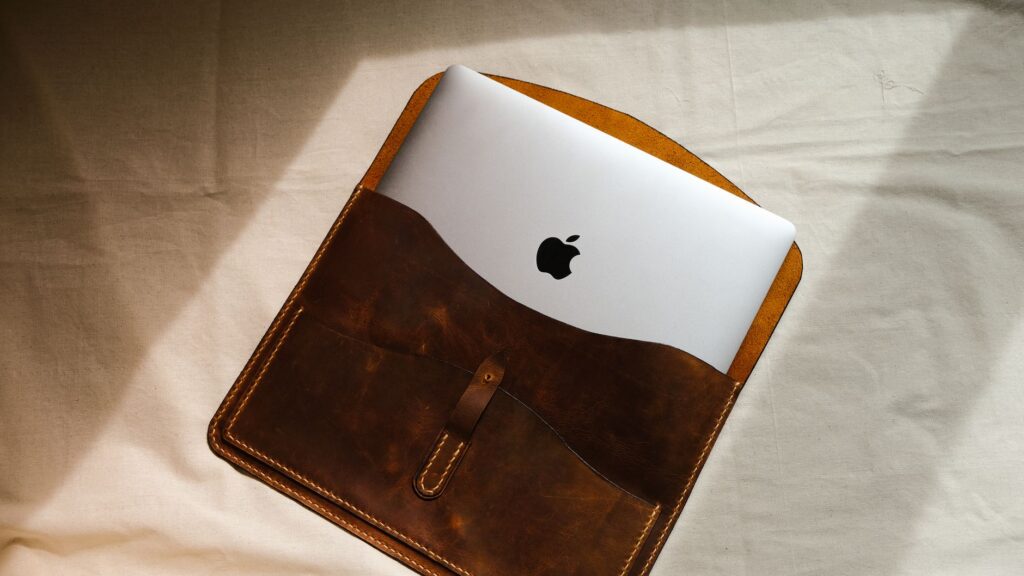
A “17-inch” label describes screen diagonal, not the computer’s footprint. With the laptop closed, measure its widest point, front-to-back depth, and thickness, including raised feet. Compare those figures with the internal compartment dimensions, not the bag’s exterior size.
Pack the charger beside the laptop during a test fit. Its brick, cable strain relief, and plug need their own space. A tight compartment can put constant pressure on the lid or screen; a loose one lets a heavy laptop slide into a corner.
Choose protection for the hazard:
- Sleeve: prevents scuffs and zipper contact inside another bag. It offers little protection in a drop.
- Padded backpack: suits daily commuting, provided the laptop sits in a suspended, snug compartment and the base is reinforced.
- Weather protection: a water-resistant shell handles brief rain, but seams and zips can leak. Use a rain cover or sealed inner pouch for sustained wet travel.
- Hard case: earns its bulk for checked gear, crowded vehicle trunks, field work, or any route involving crushing loads. It is unnecessary for a careful walk to class.
Avoid storing the power brick in the same narrow sleeve as the laptop. A separate pocket also keeps cable ends away from the chassis finish.

This bag has a padded rear compartment for laptops up to 17 inches. Its coated base and water-resistant build suit everyday transit.
Dedicated gear pockets help separate the charger from the computer. Confirm internal dimensions before packing a thick 17-inch model.
Build a kit that survives the trip
-
Put the laptop in first
Use its own padded compartment or sleeve, screen facing the bag’s protected side. Nothing rigid should share that compartment.
-
Contain the charger
Place the power brick, cable, and travel adapter in a zip pouch. This prevents a heavy brick from pressing into the lid or display.
-
Protect controls from pressure
A mouse belongs in a hard shell or side pocket; a keyboard travels flat against the bag’s back panel. Never wedge either beneath the laptop.
-
Give tiny parts one home
Store dongles, receivers, USB-C adapters, and a short cable in a labeled pouch. A spare receiver is useless when it disappears at check-in.
-
Split the travel and desk kits
Carry-on essentials are laptop, charger, mouse, headset, and one adapter. At the destination, add the stand, keyboard, cooling pad, and full-size power strip.
Keep lithium power banks in carry-on baggage; airline limits vary by capacity.
What to skip unless it solves a specific problem
A gaming kit gets worse when every accessory demands power, desk area, or setup time without removing a real limitation. Skip these unless there is a clear use case:
- Unpowered USB hubs: A mouse and keyboard are usually fine, but external drives, capture devices, and RGB gear can cause disconnects or strain a single laptop port. Choose a powered hub only when its port layout and power delivery are genuinely needed.
- Cheap cooling pads: Many add fan noise and bulk while barely changing temperatures. Vent clearance and a rigid riser often deliver the useful part; buy a pad only after measured testing shows a thermal problem.
- RGB-heavy peripherals: Lighting consumes ports, cables, software attention, and sometimes battery life, with no performance benefit on the road.
- Duplicate chargers and oversized batteries: A second brick belongs in a fixed desk setup, not every bag.
Specialized tools earn their space: a capture card for streaming, a calibrated external SSD for editing, or a compact keypad for a practiced workflow.
An accessory earns its place only when it fixes a problem that occurs often enough to matter: a cramped mouse position, unreliable audio, inadequate power, or a bag that leaves the laptop exposed. Everything else should prove its value before taking up money, ports, or carrying capacity.
Before departure, check the laptop’s actual ports, USB-C charging limits, adapter wattage, cable ratings, and the external dimensions of the laptop and bag. Weigh the complete kit—not individual items—because chargers, bricks, cables, and controllers add up quickly. Then assemble it at home exactly as it will travel: charge, connect, pack, and carry it. A setup that works there is far less likely to disappoint away from home.