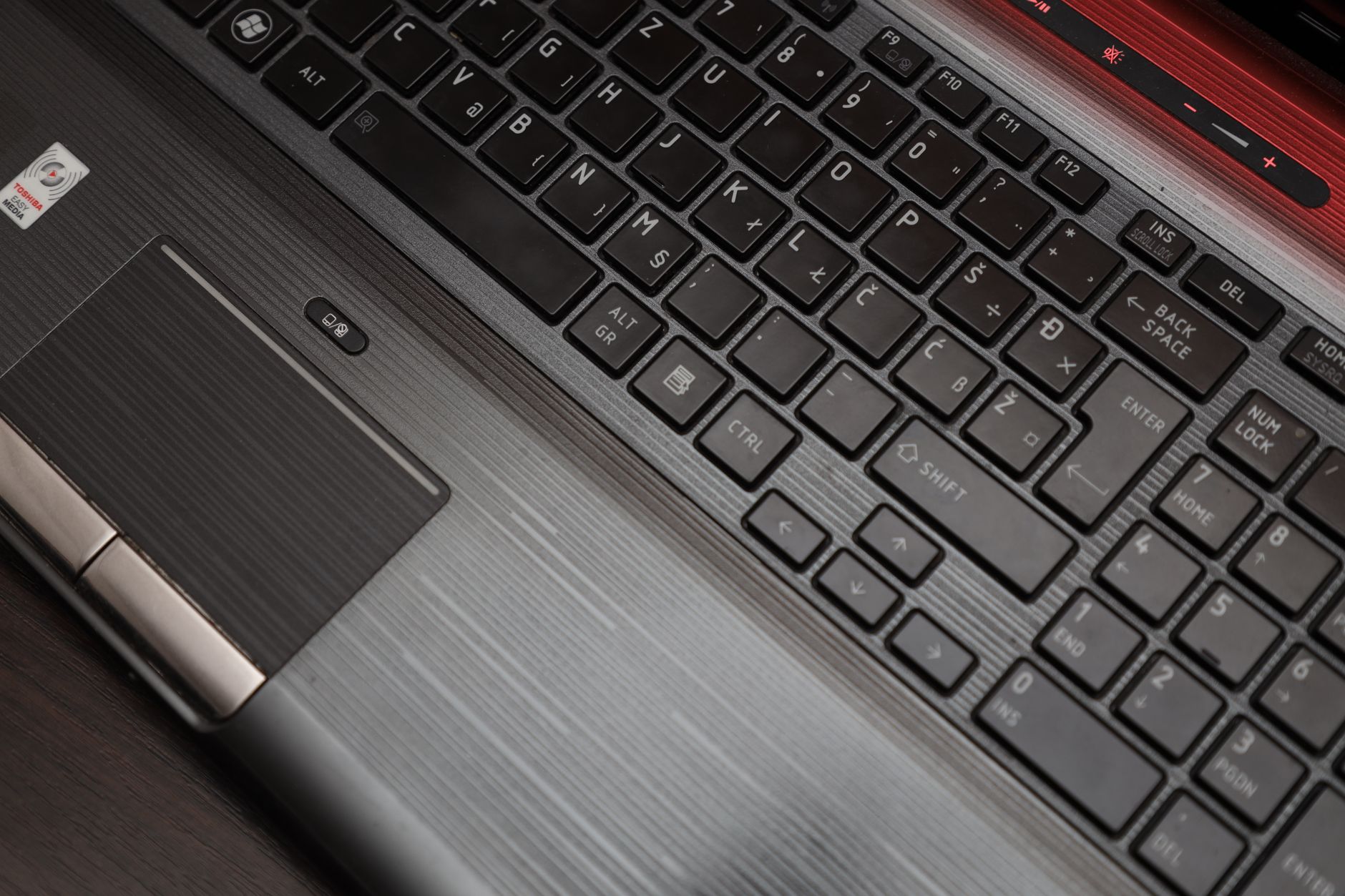
A compact keyboard can feel perfect—until a column of figures needs to be entered before lunch.
At a small desk, a 75% keyboard leaves welcome room for a notebook, coffee, and an easy mouse sweep. Then an invoice, stock count, or budget arrives: hundreds of values, decimal points, dates, and minus signs. Reaching across the board for every digit turns a tidy setup into a slow, error-prone routine.
A numpad is not automatically essential for spreadsheet work. Its value depends on the shape of the work. Repeated numeric entry benefits from the fixed, calculator-like layout and one-handed operation; the other hand can keep a source document in place or use the mouse. For formula writing, text-heavy models, dashboard review, and occasional edits, the compact layout may be faster overall because the mouse sits closer and travel is easier. The meaningful comparison is therefore not “serious” versus “casual” hardware, but whether numeric entry is a frequent bottleneck—and whether a misplaced digit costs more than a few saved centimetres of desk space.
- Dedicated numpads usually include Num Lock, decimal, arithmetic operators, and a separate Enter key—controls that vary or require layers on compact boards.
- An external USB or Bluetooth numpad can provide numeric-entry speed without making the everyday keyboard larger.
A numpad helps when numbers are the work
Why a keypad feels faster
A numpad is not merely extra keys. Its 3×3 digit grid mirrors a calculator, so experienced users can enter values by touch: the hand stays anchored, digits have fixed positions, and the mouse hand need not cross the keyboard. The top-row numbers can be quick for occasional figures, but they share space with symbols and demand more lateral movement.
The keypad also keeps common entry controls together: +, -, *, /, a dedicated decimal key, and a tall Enter key. That matters in sequences such as 125.75, Enter, 48, Enter, where a thumb or little finger can complete each value without breaking the rhythm.
Modes and small surprises
This advantage exists only with Num Lock enabled. With it off, many keypad keys become navigation commands—End, Page Down, arrow keys, and so on—rather than digits. A compact external keypad may have its own Num Lock behavior, so checking its indicator before a long import prevents mysterious wrong entries.
Keypad Enter is technically distinct from the main Enter key. Excel and many spreadsheet programs treat both as confirming an entry, but other desktop applications, remote-desktop sessions, or custom shortcuts may assign them differently. A quick test in the actual workbook workflow is safer than assuming they are interchangeable.
The decimal key also follows regional conventions. In a comma-decimal locale, it may enter , rather than .; imported data and formulas may expect the opposite separator. Verify the displayed character and the application’s locale settings before entering financial or scientific data.
Before a bulk-entry session, confirm Num Lock, test keypad Enter in the target sheet, and enter one decimal value to verify the separator.
Where a numpad earns its space
A numpad pays off most clearly when a spreadsheet is acting like a paper form: values arrive one field at a time, must be keyed by hand, and an incorrect digit has a real cost. Think invoice lines, inventory counts, lab readings, time sheets, survey coding, point-of-sale reconciliation, or budget figures copied from statements. In these jobs, the right hand can stay in a repeatable ten-key pattern while the left handles row movement or source documents.
The advantage grows with volume, regularity, and verification pressure. Hundreds of amounts entered in a shift are different from updating ten cells in a monthly tracker. Dedicated +, -, *, /, decimal, and Enter keys also reduce the awkward reaches involved in building quick calculations or committing successive entries.
When the top row is enough
Many spreadsheet sessions are not entry sessions at all. A numpad adds little when the work mainly involves:
- writing or editing formulas, where letters, parentheses,
$references, and function names dominate; - navigating wide models, auditing precedents, filtering, formatting, and commenting;
- reviewing imported CSV, ERP, or system-generated data rather than transcribing it;
- cleaning text, matching records, or building pivots and charts;
- occasional edits to a small set of numeric cells.
For these tasks, a compact keyboard can even be more comfortable because the mouse sits closer to the typing position. Keyboard shortcuts, arrow keys, and the main number row remain available regardless.
Occasional spreadsheet users therefore need not treat a numpad as a requirement. The top row is generally accurate enough for light entry, especially when figures are entered slowly and checked with totals, data validation, or conditional formatting. A separate USB or Bluetooth keypad is often the practical middle ground: it can appear for an audit or stocktake, then leave the desk when formula-heavy work resumes.
Speed only matters when it stays accurate
A numpad can raise entry speed, but broad “faster” claims usually come from controlled ten-key tests: long runs of simple numbers, no searching for source data, and little correction. Spreadsheet work is less tidy. Moving between a report, a cell range, and a formula bar can erase a small keystroke advantage.
Fluency beats hardware
The fastest method is usually the one already automated. An experienced touch typist may enter mixed labels, dates, codes, and figures more quickly from the number row than a new numpad user. A keypad pulls ahead when values repeat in a calculator-like rhythm—amount, decimal, cents, Enter—across a stable table.
Decimal entry deserves special attention. A keypad decimal key may produce a separator that differs from the workbook or operating-system locale, and some layouts omit it altogether. Before a large import or transcription session, a short test in the target column confirms that 12.50 is stored as the intended number, not text or 1250.
The error is often more expensive than the keystroke
A transposed digit can distort a total; a missed decimal can overstate an amount by a factor of 100. In financial, inventory, or scientific sheets, the time spent finding and tracing that error can exceed any entry-speed gain. Reliable operators build confirmation into the rhythm: enter a batch, compare source and destination totals, then investigate exceptions rather than trusting speed alone.
Time a familiar 10–15 minute task on both layouts. Record corrections and reconciliation time, not only cells entered per minute.
Compact options that still handle numbers
A laptop’s number row is the universal fallback: it needs no setup and works well for occasional values, formulas, IDs, and short corrections. Its weakness is reach—each digit shares a row with symbols, while operators and Enter sit elsewhere—so touch-entry rhythm is harder to sustain.
Some laptops offer an embedded keypad, usually activated with Num Lock or Fn, by turning letter keys into digits. This is practical in a pinch, but it removes normal letter access and often leaves the hand in an awkward position. It suits a few entries, not a ledger-length session.
Layers can replace keys, not always flow
On 60% and 75% keyboards that omit a full numpad, an Fn layer can place digits, operators, or a keypad cluster under nearby keys. Programmable boards can improve this further: a momentary layer under a thumb key, a dedicated spreadsheet layer, or macros that enter recurring text can reduce travel and repetitive keystrokes.
Mode switching is usually acceptable when numbers appear between writing, navigation, and review. During continuous entry, however, holding Fn, checking a layer state, or switching profiles interrupts the automatic sequence that makes a physical keypad fast. A separate USB or Bluetooth keypad remains the cleanest compromise when compactness matters most of the time but numeric runs still occur.
The desk-space trade-off
A full-size keyboard makes sustained ten-key entry easy: the right hand can remain on the keypad while the left hand advances through a worksheet, marks a source document, or uses shortcuts. That arrangement is efficient during long transcription runs.
Its cost is physical, not merely spatial. Because the numpad extends the keyboard’s right edge, the mouse sits farther from the body’s midline. In mouse-heavy spreadsheet work—selecting ranges, dragging fills, adjusting charts, reviewing comments, and switching sheets—that extra reach can mean a more abducted shoulder and repeated arm travel. The effect is most noticeable on shallow desks or when the keyboard must remain centered with the monitor.
Match the layout to the dominant motion
A compact keyboard brings the mouse inward, often allowing the elbow to stay closer to the torso. That can make mixed work feel less tiring even when occasional numbers must be entered from the top row. A compact layout is therefore not a compromise for someone whose spreadsheet time is mostly navigation, formulas, and review.
A separate keypad avoids making the choice permanent. It can sit to the right for familiar calculator-style entry, be moved aside when the mouse becomes dominant, or sit on the left so the right hand remains on the mouse. Left-side placement is especially useful for entering a figure, clicking the next cell, and continuing without crossing hands.
The best position is the one that keeps the active device close. During numeric batches, the keypad earns the prime spot; during analysis, the mouse does.
Keep a compact board centered. Place a detachable keypad on the right only for long entry sessions; otherwise park it left of the keyboard or off the desk. An external keypad also makes it easier to test whether faster entry outweighs the extra reach.
A Separate Keypad Solves the In-Between Case
-
A connection that behaves predictably
A wired USB keypad is the safest choice for fixed desks and locked-down work machines. Wireless models are more portable, but Bluetooth wake delays, pairing loss, and battery failure can interrupt a fast entry run.
Look forUSB-C or a proven receiver, with dependable wake behavior.AvoidA Bluetooth-only unit for time-critical, uninterrupted entry. -
A layout that matches the workbook
Confirm a full zero key, operators, decimal point, and a suitably sized Enter key. ISO and regional variants may place decimal and Enter differently, which matters when accounting formats use local separators.
Look forA familiar calculator-like layout with the required decimal behavior.AvoidA compact layout that moves keys relied on by touch. -
Programming that reduces repeats
Useful keypads store shortcuts or macros in onboard memory, so mappings follow the device across computers. OS-level remapping is still valuable, but may be blocked by corporate permissions or fail inside remote-desktop sessions.
Look forOnboard profiles and remappable keys for recurring spreadsheet actions.AvoidSoftware-dependent macros that work only on one managed machine. -
Placement and multi-device fit
A weighted base and rubber feet prevent drift; a detachable keypad can sit beside the mouse for number-heavy sessions, then move aside. For switching a work keyboard between devices, verify whether the keypad has its own device button or requires re-pairing.
Look forStable feet and independent, quick device switching when needed.AvoidA light keypad that slides or shares an awkward pairing workflow.
Choose for the work that repeats
- Choose full-size for frequent, accuracy-sensitive manual entry.
- Choose compact when mouse reach and travel matter more than ten-key speed.
- Choose a compact board plus detachable keypad when numeric bursts are real but not constant.
A full-size keyboard is the sensible default when long runs of hand-entered figures are routine and errors are costly. A compact keyboard suits formula work, review, and mobile setups where a closer mouse reduces strain.
For mixed work, a compact-plus-keypad arrangement is often the most flexible: place the keypad close only during entry runs. Before replacing a good keyboard, track one week of actual inputs—numeric runs, corrections, mouse travel, and travel days—then trial a standalone keypad. Observed friction is more useful than assumed speed.