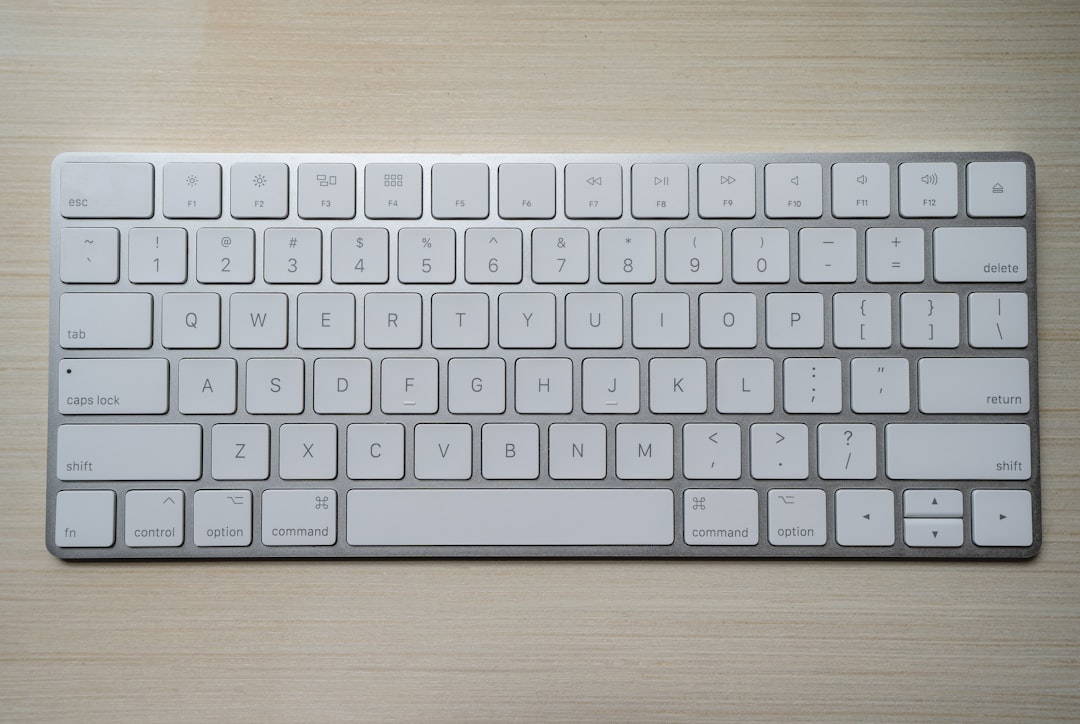
The best switch is the one that prevents a stray password from landing on the wrong device.
A work laptop glows beside a home PC or tablet; one misplaced keystroke can send a private note—or a company credential—to the wrong screen. A multi-device keyboard replaces pairing-menu friction and desk clutter with dedicated device-switch keys.
Comfort still matters: low-profile scissor keys suit quiet, fast office work, while tactile mechanical switches give clearer feedback during long writing sessions. For managed work machines, confirm Bluetooth and receiver use meet IT policy, lock the inactive device, and treat switching as convenience—not a security boundary.
- Most multi-device models pair with up to three devices; a single key press selects the active connection.
- Backlighting shortens battery life substantially, so USB-C recharging is valuable for daily use.
Keyboards that keep switching simple


Wireless is not automatically multi-device
Wireless connection
A keyboard may use Bluetooth or a 2.4 GHz receiver yet still pair with only one host at a time.
Multi-host switching
The keyboard stores separate connection profiles—commonly two or three—and recalls the selected computer, tablet, or phone without repairing.
Dedicated device controls
Clearly marked hardware keys, a dial, or a physical selector make the active host obvious. A buried shortcut is slower and easier to trigger by mistake.
Saved profile
Each slot retains its own Bluetooth pairing or receiver link. Switching should take a second or two, not require opening system settings.
One active host
Multi-device keyboards send keystrokes to one selected device at once. They do not type on several screens simultaneously.
A “three-device” claim is meaningful only when each device has a persistent slot and an obvious control to select it. For work and personal use, two dedicated buttons are often better than one cycling button: the chosen destination is visible before the next keystroke lands.
Choose the connection for each device
Bluetooth is the most portable choice: no dongle to misplace, broad support across laptops, tablets, and phones, and easy travel between personal devices. Modern Bluetooth keyboards are responsive enough for ordinary office work, but wake-from-sleep can take a moment after the keyboard or host idles. It is also more exposed to crowded-radio interference than a dedicated receiver.
A 2.4GHz receiver usually wakes a fixed desktop more reliably and delivers the most consistent low-latency feel. That makes it the safer work-machine connection for frequent calls, remote sessions, or fast typing—provided the organization permits USB peripherals. A receiver is rarely universal: proprietary dongles typically work only with their own brand or supported product family, so it should stay with that keyboard.
USB-C is the dependable fallback, with no radio latency, pairing, or battery concern; it may also be the only approved option on locked-down corporate hardware. For personal laptops and tablets, Bluetooth-first flexibility is often ideal. For selecting the best keyboard connection for multiple devices, reserve a receiver or cable for the machine that must work instantly, then check IT policy before buying.
Endpoint management can block Bluetooth pairing, external receivers, or both. Approval may depend on the receiver’s security standard—not merely whether it uses 2.4GHz.
What earns a place on a mixed-device desk
-
Switching that stays predictable
Prioritize three saved hosts for a work laptop, personal machine, and tablet or phone. Numbered hardware selector keys should reconnect to the intended profile after sleep, rather than opening pairing mode.
Look forThree profiles, dedicated keys, reliable wake-and-return behavior.AvoidA single Bluetooth pairing button or switching through software. -
Compatibility before cosmetics
Confirm the operating systems in use, including managed Windows or macOS machines. Check modifier legends, Mac/Windows remapping, ISO versus ANSI layout, and whether the receiver works without privileged software.
Look forNative support and a layout matching daily muscle memory.AvoidAssuming Bluetooth support guarantees corporate-device compatibility. -
Feel and visibility at the actual desk
Key travel, switch weight, height, and wrist angle matter more than a spec-sheet switch name. Backlighting helps in dim rooms but shortens runtime; adjustable or auto-off lighting is the practical compromise.
Look forComfortable typing and lighting that can be controlled or disabled.AvoidPaying for bright RGB effects that are rarely used. -
Power and price with the receiver included
Rechargeable models reduce battery purchases; replaceable cells can be simpler on long trips. Compare the full cost of the keyboard, receiver, and any required adapter, then favor reliable switching over premium case materials.
Look forClear battery expectations and all necessary hardware in the price.AvoidA cheap keyboard that needs extra accessories or frequent charging.
Compatibility is more than a logo
A Windows/macOS/ChromeOS badge usually means the keyboard can connect and type. It does not guarantee that every printed legend, shortcut, or configuration feature behaves as expected.
Modifier rows matter most. A Mac-focused board may label Option and Command where a Windows user expects Alt and Win; ChromeOS relies on its Launcher/Search key; iPadOS and Android recognize many shortcuts but expose fewer system-level controls. Linux often works well as a standard HID keyboard, yet vendor utilities may offer no native support.
Test the configuration path
Remapping is valuable only when it survives the move between devices. Onboard memory stores mappings, layers, and lighting in the keyboard, so a preferred layout can follow it to a locked-down work PC or a tablet. Software-only profiles may require an administrator-approved install, a background service, or a signed-in vendor account—conditions commonly unavailable on managed Windows and macOS machines.
Before buying, confirm whether remaps work in hardware, whether they apply over Bluetooth and receiver alike, and whether iPadOS or Android can access the needed shortcuts without companion software.
Look for separate claims for connection, remapping, and onboard profiles. They are often three different levels of support.
Make space for the way work happens
A full-size board keeps the numpad close for finance work, inventory systems, and frequent numeric entry. It also pushes the mouse farther right, which can be tiring on a narrow desk. Tenkeyless and 75% layouts reclaim that pointing space while retaining function keys; for choosing a compact keyboard size, the missing keys matter more than the percentage label.
Low-profile scissor keyboards are thin, quiet, and usually have short, controlled travel. They suit shared rooms and laptop-like typing, but their integrated construction makes individual key or switch repair uncommon. Mechanical boards offer deeper travel, more distinct feedback, and switches that can often be replaced—especially on hot-swappable models.
Switch choice matters as much as the mechanism. Linear switches are smooth but can encourage bottoming out; tactile switches provide a bump that helps some typists regulate force; clicky switches are rarely considerate in shared spaces. For long sessions, a lighter switch and a stable wrist angle often reduce fatigue more reliably than chasing the loudest or most dramatic feel. Mechanical boards also support keycap swaps and firmware remapping, useful when one layout must serve several operating systems.
Keep the work machine in its own lane
A company-managed computer is not simply another Bluetooth slot. Many IT policies block new Bluetooth pairings, prohibit unknown USB receivers, or require approved peripherals. Before buying, confirm whether Bluetooth is permitted, whether a receiver must be vendor-approved, and whether wired USB-C is the fallback. A keyboard that works without companion software is the safer choice on a locked-down machine.
Wireless trust matters too. A receiver is a small radio device with firmware, not a passive adapter; reputable vendors provide signed firmware updates and publish support for their receiver generation. Avoid relying on an old dongle of uncertain origin. If a receiver stays in the work laptop, a keyboard with onboard receiver storage prevents it being lost during travel.
Power behavior that matters
Quoted battery figures usually assume lighting off. Bright RGB or white backlighting can turn months into days; even restrained illumination may cut runtime sharply. USB-C charging while typing is valuable, but confirm that the keyboard remains usable rather than merely charging.
Sleep behavior deserves equal weight. A board that wakes in a second feels seamless; one that needs a keypress to wake and another to reconnect interrupts every return to the desk. Switching should not erase host pairings, remaps, or lighting settings.
Ask IT whether the model’s Bluetooth, proprietary receiver, and wired mode are allowed. Keep the approval in writing when a receiver is required.
Recommendations were judged in everyday device changes, not only from specification sheets.
Host changes were timed, then tested after sleep and after moving between Bluetooth and receiver connections.
Onboard remaps, pairings, key feel, noise, layout, and operation without vendor software were checked.
Street price included the receiver, charging cable, usable lighting runtime, and the cost of missing essentials.
The connection pattern should choose the keyboard—not a single “best” model.
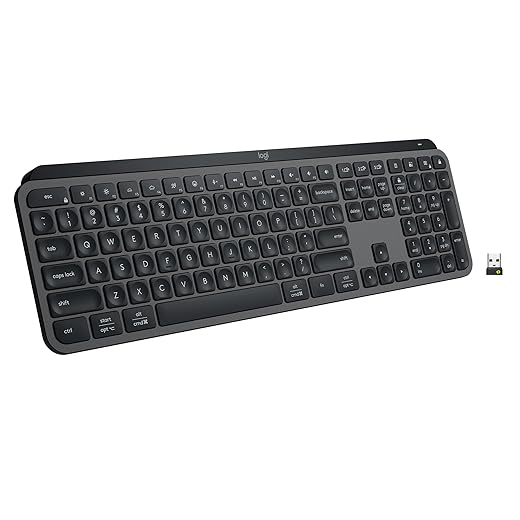
Logitech MX Keys S is the polished fixed-desk choice: three Easy-Switch profiles can use Bluetooth or a Logi Bolt receiver, with quiet, laptop-like scissor keys and clear dedicated buttons. The receiver gives dependable desktop wake-up, but needs a USB port and IT approval; Bluetooth remains the route for phones and tablets. It has no wired data mode. Logitech Wave Keys uses the same three-device approach for someone who values a relaxed wrist angle over a conventional flat layout. Its fixed wave shape and lack of backlighting make it a comfort-first, not enthusiast, option. Keychron K10 Max serves the person who wants one board for a work PC, personal laptop, and tablet without depending on vendor software. It keeps three Bluetooth pairings, adds a 2.4 GHz receiver and USB-C wired use, and offers mechanical feel and remapping. It is taller, louder, and less travel-friendly than a scissor board.A receiver is excellent for a permanent computer; it is not a substitute for Bluetooth when a tablet or phone must join the rotation.
Premium full-size multi-device keyboard
The MX Keys S makes switching feel deliberate rather than fiddly: three Easy-Switch keys select paired hosts directly, while Bluetooth covers tablets and personal laptops and the Logi Bolt receiver suits a fixed work desk. Its low-profile scissor switches are notably quiet, stable, and refined for long writing or spreadsheet sessions; smart backlighting and rechargeable power add everyday polish.
The premium is easier to justify for a mixed desk than for gaming or repair-minded buyers. It is full-size and relatively heavy, has no mechanical switch feel or wired data mode, and its customization depends on Logi Options+—which may be unsuitable on locked-down work machines. Confirm Bluetooth or Bolt-receiver approval before buying.
| Device switching | 3 hosts |
| Wireless | Bluetooth LE |
| Receiver option | Logi Bolt |
| Layout | Full-size |
| Key switches | Scissor |
| Charging | USB-C |
| Weight | 810 g |
Low-profile mechanical for three devices
Mechanical feel is not automatically an upgrade: it adds cost, a larger desk footprint, and more audible key travel. This model makes the case for buyers who want a crisper tactile bump without the clatter of conventional tall-switch boards. Its low-profile Tactile Quiet switches keep the typing position closer to a laptop keyboard, while the full-size layout preserves a numpad for spreadsheets and finance work.
Three saved connections switch at a dedicated key; Bluetooth LE suits portable devices, while the included Logi Bolt receiver is the steadier fixed-desk option. The metal top plate gives it a notably more substantial feel than a typical office keyboard. At about $150, it is best for someone who values switch feel and build quality—not for a budget buyer or a shared silent room.
| Price | ~$150 |
| Layout | Full-size |
| Switches | Tactile Quiet |
| Saved hosts | 3 devices |
| Connection | Bluetooth LE / Bolt |
| Charging | USB-C |
| Battery | 15 days lit |
| Build | Metal top plate |
| Typical price | ~$35 |
| Easy-Switch | 3 saved devices |
| Connection | Bluetooth only |
| Desk setup | No receiver support |
| Key feel | Scissor switches |
| Lighting | No backlighting |
| Power | 2 AAA batteries |
| Weight | ~415 g |
Turn switching into a routine
-
Give every device a permanent slot
Reserve the same selector position for work, personal, and mobile devices. A fixed order makes switching nearly automatic and reduces the chance of typing into the wrong screen.
-
Keep the work link conservative
Use the work machine’s most reliable permitted connection—often its approved receiver or a direct USB-C cable—and avoid changing it merely for symmetry.
-
Test sleep before relying on it
Wake each host after a realistic idle period, then switch away and back. Note whether the first keystroke is lost, delayed, or requires a second press.
-
Check modifiers in real applications
Confirm Command/Option, Windows/Alt, and shortcut layers in the work apps that matter. Save hardware remaps to the keyboard when possible, rather than depending on restricted software.
-
Build around the busiest workload
For frequent numbers, choose a full numpad and dependable navigation cluster; a keyboard setup tailored to spreadsheet work can make formulas, selections, and data entry markedly faster.
Re-test after operating-system updates or a workplace security-policy change.
Match the keyboard to the connection
For phones, tablets, and varied personal hardware, start Bluetooth-first. For a fixed desktop paired with a laptop, choose a board with both a receiver and Bluetooth. Where a missed wake-up or wireless interruption is unacceptable, keep USB-C wired mode alongside wireless options.
Dedicated device buttons, dependable waking, and a layout that suits daily work matter far more than flashy extras. For wider comparisons of switches, sizes, and connection styles, consult the complete keyboard buying guide.