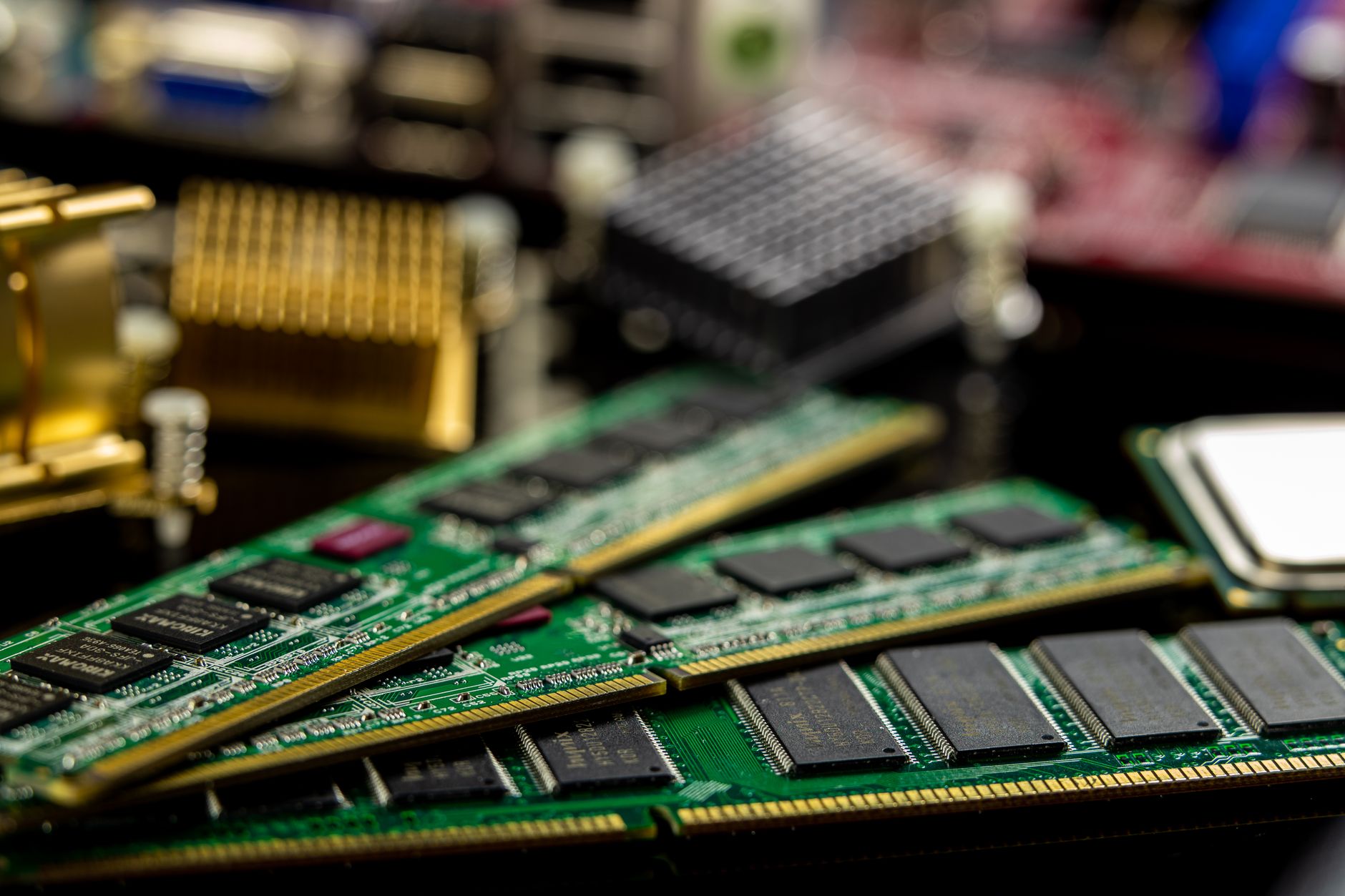
A 3200 MHz kit reporting 2133 MHz is alarming—but it is usually behaving exactly as designed.
Freshly installed memory often appears in BIOS or Windows at 2133 MHz, even when its packaging promises 3200 MHz. That number is typically the motherboard’s safe, universally compatible JEDEC default: a conservative profile intended to let almost any supported DIMM boot reliably.
The 3200 rating is normally an advertised overclock profile—usually XMP on Intel-oriented kits, or an equivalent profile such as EXPO/DOCP on other platforms. Until that profile is enabled, the board has no reason to apply its higher frequency, tighter timings, and sometimes higher voltage. So a successful boot at 2133 is reassuring evidence that the modules are detected and functional, not proof that they are slow or faulty.
- DDR memory may be displayed as 2133 MHz, 2133 MT/s, or roughly 1066 MHz by some utilities; the last figure is the physical clock, before double-data-rate transfer is counted.
Match transfer rate to clock rate before diagnosing a fault
- DDR data rate
DDR transfers data on both clock edges, so a 3200-rated kit delivers 3200 MT/s (often casually labeled 3200 MHz). Its physical memory clock is about 1600 MHz.
- DRAM Frequency
In CPU-Z, HWiNFO, and similar tools, a live reading near 1066 MHz corresponds to DDR4-2133; near 1600 MHz corresponds to DDR4-3200. Multiply this figure by two.
- Operating speed
Windows Task Manager may report “Speed: 3200 MHz,” but it is normally presenting the effective DDR rate. Compare it with the kit’s advertised MT/s figure, not with the raw clock reading.
- Rated specification
Confirm the intended speed from the module label, retailer listing, or the manufacturer’s exact part-number page. The XMP/EXPO profile stored in SPD is the most reliable reference for its programmed performance settings.
A monitoring tool showing ~1600 MHz DRAM Frequency is not evidence of half-speed operation; it is the physical clock behind DDR4-3200. Conversely, ~1066 MHz confirms the system is running at the 2133 MT/s fallback setting.
Check the kit’s part number before changing firmware settings. Similar-looking modules can have different rated profiles, voltages, and timings.
Why firmware starts at 2133
DDR4 modules carry a small SPD (Serial Presence Detect) data table. Firmware reads it before the operating system loads and selects a speed, voltage, and timing set that the CPU memory controller and motherboard are expected to boot reliably. For many DDR4 generations, 2133 MT/s is the common baseline JEDEC entry; it is a transfer rate, not a 2133 MHz physical clock.
The large number on a retail package usually describes a second configuration: an XMP profile validated by the memory vendor. A kit sold as a 3200 MT/s 32 GB DDR4 desktop kit may therefore boot at 2133 until that profile is enabled. This is normal behavior, not evidence that the modules are counterfeit or defective.
What changes when the profile loads
At 2133, firmware may use roughly 1.20 V and relaxed, standardized timings. A 3200 profile commonly requests 1.35 V, a higher memory-controller data rate, and tighter values such as CL16-18-18-36. Those settings are tested for that kit, but they remain an overclock from the CPU platform’s perspective; CPU support, board layout, BIOS revision, and DIMM population still matter.
Firmware vendors use different names for the same idea: XMP on Intel-oriented boards, DOCP or EOCP on some AMD boards, and EXPO for AMD-focused DDR5 profiles. The label differs; the purpose is to apply the module’s stored performance settings rather than the cautious JEDEC defaults.
Load the memory profile without guessing
-
Record the working baseline
Before changing anything, note the current memory speed, DRAM voltage, and primary timings shown in firmware. Photographing the page makes an unsuccessful change easy to undo.
-
Enter UEFI/BIOS and find memory tuning
After a restart, open the firmware setup and look under Ai Tweaker, OC, Tweaker, Extreme Memory Profile, or a similar board-specific menu. Names vary: Intel boards commonly show XMP, while AMD boards may offer EXPO, DOCP, A-XMP, or EOCP.
-
Select the profile that matches the kit
Choose the advertised profile rather than typing frequency, timings, and voltage manually. A 3200 kit should normally show a target near DDR4-3200 (3200 MT/s), along with its rated CAS timings and often 1.35 V.
-
Verify every target before saving
Confirm that the selected profile has changed the memory multiplier/data rate, primary timings, and DRAM voltage together. If multiple profiles appear, use the one whose displayed values match the label or manufacturer specification for the installed kit.
-
Save one change and test the boot
Save and restart with only the profile selection changed. Once the system reaches the operating system, verify the effective memory rate, then run a memory stability test before altering CPU overclocks, fabric clocks, or manual voltages.
A failed boot is usually recoverable: allow the board’s training retries, then clear CMOS or load defaults if it does not restore safe settings automatically.
A memory profile is a coordinated package, not just a faster frequency. Changing its voltage, timings, CPU overclock, or AMD fabric settings at the same time obscures the cause of any crash or failed training.
If the profile will not boot, return to defaults and retry the profile alone. Only after confirming instability should compatibility troubleshooting begin—such as updating BIOS, checking DIMM slots, or reducing the memory target one step.
When 3200 falls back to 2133
A system that accepts the profile, restarts, then reports 2133 MT/s has usually not ignored the setting. The firmware attempted to train the requested frequency, timings, and voltage; when that training failed, it restored a bootable JEDEC configuration. This is a protective recovery, not evidence that the DIMMs are necessarily defective.
Start by returning firmware settings to optimized defaults, then load only the memory profile again. Disable any CPU overclock, undervolt, manual fabric setting, or altered base clock while testing. Memory stability depends on the CPU’s memory controller and motherboard signal path as well as the RAM kit.
Update the motherboard BIOS/UEFI to a stable current release before pursuing manual timings. Firmware revisions commonly improve memory-training algorithms and compatibility with newer DIMMs. After the update, load defaults once more; updates can retain stale settings that complicate diagnosis.
Confirm that a two-module kit occupies the board’s recommended paired sockets—almost always A2 and B2, the second and fourth slots from the CPU. Power the machine off fully, reseat both DIMMs, and inspect for incomplete latches or debris. A marginal contact can pass 2133 yet fail at 3200.
If the machine no longer reaches setup after selecting the profile, prioritize recovery: restore a PC that will not boot after memory-setting changes by clearing CMOS or using the board’s recovery procedure. Once it boots reliably at defaults, test the profile again before changing voltage or timings.
Repeated forced restarts can leave settings in an uncertain state. Clear CMOS, boot at defaults, and verify DIMM placement before attempting lower frequencies or manual adjustments.
When 3200 MHz is not possible
A 3200-rated kit can only run at 3200 when the CPU’s integrated memory controller, motherboard firmware, and installed configuration all permit it. The package label describes what the modules can do under their stated profile—not a guarantee for every system.
An older processor may officially support only DDR4-2133 or 2666. Some desktop boards expose XMP yet cap the selectable multiplier by CPU generation, chipset, or a restricted BIOS. If 3200 is unavailable in the firmware menu, or applying it always retrains to a lower speed after a BIOS update and correct seating, there may be no stable setting that can force it.
Population changes the ceiling
Running four DIMMs, high-capacity sticks, or mixed kits puts more electrical load on the memory controller than a validated two-DIMM kit. Firmware may therefore reduce frequency automatically, even when every individual module says 3200. A CPU that reaches 3200 with two single-rank DIMMs may be limited with four dual-rank DIMMs.
Laptops are stricter still. Many offer no XMP control and accept only their built-in JEDEC speeds; a 3200 XMP-only kit can consequently operate at 2133 or 2666. Check the laptop RAM specifications that must match before an upgrade, including supported JEDEC profiles, maximum capacity, and processor generation.
In these cases, the practical remedy is compatible JEDEC-rated memory or accepting the platform’s negotiated speed—not repeated profile changes.
Same Speed Label, Different Memory Behavior
They may share a headline speed yet use different memory chips, ranks, PCB layouts, or SPD/XMP data.
The memory controller trains both DIMMs as one electrical load. A timing or voltage that works for each stick alone can fail when their characteristics differ.
Part number, revision, rank layout, and profile timings matter more than the heat spreader or logo.
Manufacturers can change ICs during a product run without changing the retail name. Even nominally identical modules can therefore train differently.
They are compatible at a conservative JEDEC setting; the performance profile remains unproven.
At 3200, tighter timings, higher voltage, and signal margins expose differences hidden at stock settings.
Install only the matched kit in the board’s recommended slots, load its profile, and run a memory test plus a normal workload. If it is stable alone but not with the added DIMMs, the issue is the combined configuration—not necessarily a faulty stick.
For a mixed set, start at the slower module’s profile or reduce the data rate, then test after every change. This is the practical side of mixing RAM’s effect on speed and stability. A matched kit is binned and validated together; separately purchased modules are not.
Keep the fastest setting that stays reliable
-
Confirm the applied rate twice
Check the memory data rate, timings, and DRAM voltage in firmware after saving the profile. Then confirm the live rate in the operating system; remember that many tools display the DDR clock, roughly half the advertised MT/s.
-
Test more than booting
A successful POST only proves that training completed. Run a dedicated memory test, then use the system normally: long games, compilation, rendering, large file transfers, or the workload that previously exposed trouble.
-
Treat errors as memory instability
Application crashes, WHEA events, corrupted archives, blue screens, and memory-test failures all count. Do not dismiss a single error simply because the machine otherwise feels fast.
-
Reduce one step at a time
If 3200 is unreliable, lower the memory multiplier to the next available rate—such as 3066, 3000, or 2933—while retaining sensible profile timings where firmware permits. Retest after every change rather than altering voltage and timings at once.
-
Recheck after hardware changes
Adding DIMMs, updating firmware, or changing CPUs can alter training margins. Follow the correct process for upgrading computer RAM before assuming an earlier stable profile will remain stable.
For a daily-use system, repeat the workload test after a cold boot; marginal memory can pass when already warm.
- A rated 3200 kit is not automatically a guaranteed 3200 result on every CPU, board, and DIMM configuration.
- One clean error is enough reason to tune downward and test again.
The right target is not the highest number shown on the package; it is the fastest setting that remains demonstrably error-free in both testing and real work. For some platforms that will be 3200, while for others 2133 is the correct stable outcome.