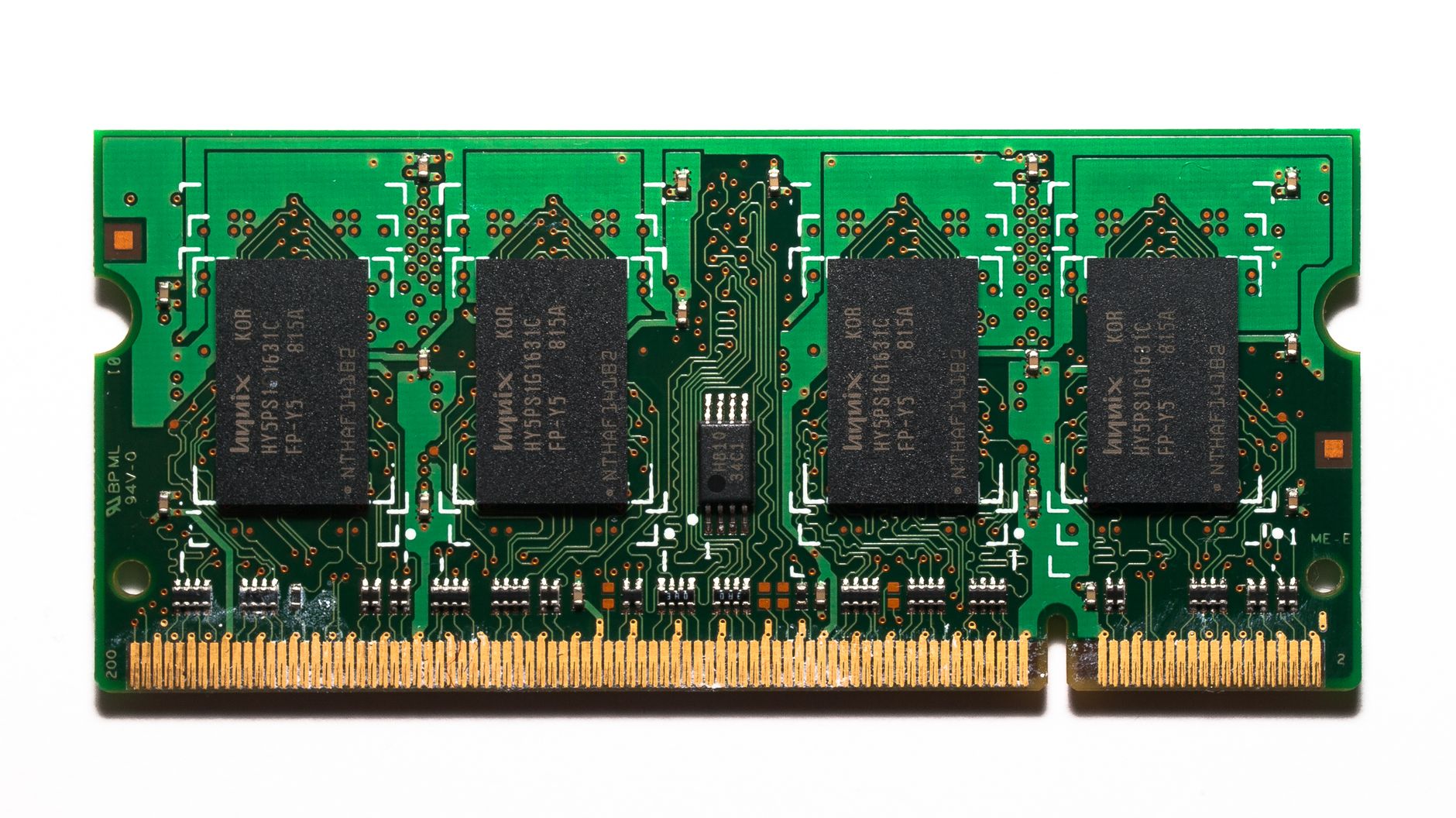
A single extra memory module can turn constant hesitation into a laptop that keeps pace.
The slowdown usually arrives mid-task: a video call is running, a spreadsheet is open, the browser has accumulated a dozen tabs, and apps begin pausing while the system leans on its far-slower SSD. 8GB is no longer roomy working space for many everyday Windows workloads.
A 16GB module can provide real breathing room—but only if it matches the laptop’s limits. The correct purchase depends on the existing generation (typically DDR4 here), SO-DIMM form factor, supported capacity, speed ceiling, and whether memory is soldered or a slot is available. A DDR4-3200 stick may safely run at a laptop’s lower supported speed; DDR5, desktop DIMMs, and incompatible voltages will not. Checking the model manual or scanning the installed memory first prevents an upgrade that cannot deliver its promised relief.
- Confirm the laptop has an open SO-DIMM slot or supports replacing its current module.
- For best dual-channel performance, pair modules with matching capacity and ideally matching speed.
Five smart ways to add 16GB



These selections prioritize credible JEDEC specifications, likely compatibility breadth, warranty or support, and value—not benchmark claims alone. Confirm the laptop’s memory type, slot availability, and maximum capacity before ordering.
All picks are 260-pin, 1.2V DDR4 SO-DIMMs; none fits a desktop DIMM slot or a DDR5-only laptop.
A 3200 MT/s stick normally runs at the laptop’s supported memory speed. Mixing modules can also make both operate at the slower setting.
For best dual-channel behavior, match capacity and preferably speed. Rank and chip layout can vary by production batch on some models.
Choose the capacity layout, not just the stick
An 8GB laptop with one open slot can often take a 16GB module for 24GB total. This is a practical, inexpensive route for heavy browser use, office work, and photo editing. Most systems run the matched 8GB portion of the new module in dual-channel mode, while the remaining 8GB runs single-channel—a setup called flex mode.
Replacing the existing 8GB module with one 16GB stick delivers 16GB, but usually in single-channel mode. It makes sense when there is only one replaceable slot or the old stick is incompatible.
For sustained memory-heavy work or integrated graphics, two matched 16GB modules are the stronger option: 32GB with full dual-channel bandwidth across the entire capacity. Before ordering, check:
- the number of accessible SO-DIMM slots;
- whether any RAM is soldered to the board;
- the manufacturer’s documented maximum capacity, not merely the CPU’s theoretical limit.
A soldered 8GB configuration plus one slot may support 24GB—or may be capped at 16GB—so the exact laptop model matters.
Samsung 16GB DDR4-3200 for a close matched upgrade
01
Top choice for high-performance DDR4 laptop upgrades
Samsung’s M471A2K43DB1-CWE is a 16GB, 260-pin DDR4 SO-DIMM rated at 3200 MT/s (PC4-25600), with standard 1.2V operation and a 2Rx8 dual-rank layout. It is the performance-minded choice for a laptop whose manual or installed module already specifies DDR4-3200.
For an addition beside existing memory, matching the current stick’s speed, voltage, capacity, and—where possible—rank organization gives the memory controller the cleanest path to dual-channel operation. Its CL22 timing is normal for JEDEC-standard DDR4-3200 laptop memory, rather than an aggressive overclocking profile.
- JEDEC DDR4-3200 PC4-25600 specification
- 2Rx8 dual-rank organization
- Standard 1.2V laptop memory
- Strong fit beside a similar Samsung 3200 module
- Premium pricing can erase its value advantage
- Runs at the laptop’s supported speed, not necessarily 3200
- Rank and IC details may not match every installed stick
Quick take A technically well-specified 16GB module for systems that can actually use DDR4-3200. It is most compelling when it closely mirrors the memory already installed.
For a laptop officially supporting DDR4-3200, this Samsung module is a confident performance-first upgrade. It does not create a speed boost by itself: a machine capped at 2933 or 2666 MT/s will downclock it to that limit, and mixed memory operates at the slowest compatible settings.
Check the service manual, installed-module label, and available slot before buying. When those details line up, the extra 16GB delivers the more meaningful gain: smoother multitasking and less paging to storage.
Crucial’s compatibility-led DDR4 replacement
Broad speed support for newer Intel and AMD laptops
Crucial’s CT16G4SFRA32A is the reassuring mainstream choice for a laptop that needs a straightforward 16GB DDR4 SO-DIMM replacement or a first serious upgrade. It is a 260-pin, 1.2V DDR4 module rated at 3200 MT/s, and can operate at lower supported DDR4 speeds such as 2933 or 2666 MT/s when the laptop’s memory controller sets that ceiling.
Crucial’s established laptop lookup guidance is particularly useful when a model has several board revisions or unclear factory memory specifications. It narrows the search to plausible modules, but it cannot override the hardware: the machine must have a DDR4 SO-DIMM slot, support a 16GB module in that slot, and remain within its total memory limit. For broader brand trade-offs, see how Crucial compares with Kingston laptop RAM.
- Well-established model-specific compatibility guidance
- DDR4-3200 rating falls back to supported lower speeds
- Standard 260-pin, 1.2V laptop format
- Not suitable for DDR5 or LPDDR-only laptops
- A compatibility listing does not raise the laptop’s capacity limit
- CL22 is typical DDR4-3200 latency, not a performance-focused timing
Lifetime warranty adds confidence to this capable upgrade
A-Tech’s single 16GB DDR4-3200 SO-DIMM is a reassuring pick when an upgrade needs a real support path rather than a bare marketplace listing. Its lifetime warranty and access to A-Tech’s tech support are especially welcome for laptops that need a long first boot while memory training, or that reveal a marginal module only after sleep, heavy multitasking, or several restarts.
This is a standard 260-pin, 1.2V, non-ECC unbuffered DDR4 module rated at CL22. It suits a laptop with an open DDR4 SO-DIMM slot or a compatible single-module replacement. Before ordering, the buyer should confirm that the machine accepts 16GB per slot and does not use soldered-only memory.
- Lifetime warranty coverage
- Helpful pre- and post-purchase support
- Standard DDR4-3200 laptop specification
- Single 16GB upgrade capacity
- Not every laptop supports 16GB modules
- Actual speed may fall below 3200
- Rank may be 1Rx8 or 2Rx8
- Single stick can limit dual-channel bandwidth
A lower-cost option with lifetime support included
A sensible 2666MHz capacity-first upgrade
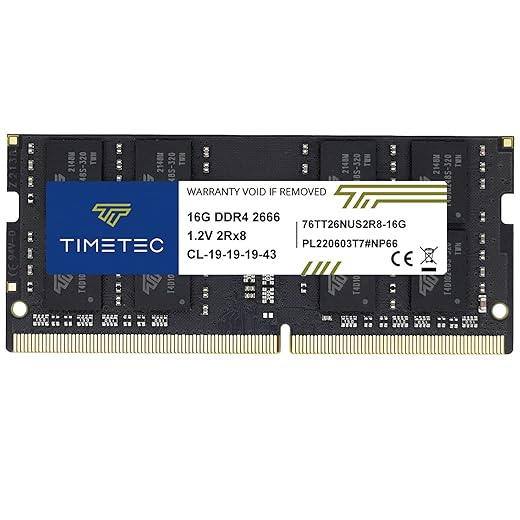
Timetec’s 16GB DDR4-2666 SO-DIMM suits laptops whose memory controller is specified for 2666MT/s and owners who need breathing room for browser tabs, office apps, video calls, and background utilities. In these machines, moving beyond 8GB can reduce paging to the SSD far more noticeably than chasing a higher memory clock.
It is a standard 260-pin, 1.2V, non-ECC DDR4 module with CL19 timing, intended for laptops, mini PCs, and all-in-ones—not desktop DIMM slots. Production batches may use different PCB colours or ranks, so it is best treated as a standalone capacity upgrade rather than a guaranteed physical match for an existing stick. A limited lifetime warranty and US-based support add reassurance to a practical, lower-cost choice.
- 16GB meaningfully relieves 8GB multitasking pressure
- Native DDR4-2666 fit for matching systems
- 1.2V standard laptop SO-DIMM
- Limited lifetime warranty and support
- Will downclock a 3200MT/s pair to 2666MT/s
- Rank and PCB colour can vary by batch
- Not a desktop DIMM module
Simple plug-and-play memory for everyday multitasking
PUSKILL is a straightforward 16GB DDR4-3200 SO-DIMM for a laptop with one accessible empty slot or an 8GB module that can be removed. Its JEDEC 3200, CL22, 1.2V specification is intended to run without memory overclocking settings—provided the notebook accepts 260-pin DDR4 SO-DIMMs and supports the capacity.
Before ordering, match the laptop’s generation, slot type, maximum memory, and existing module’s speed and voltage. Keep the packaging until the machine boots cleanly, reports the full 16GB in BIOS or the operating system, and passes a brief memory check.
- JEDEC DDR4-3200 CL22 specification
- Standard 1.2V 260-pin SO-DIMM
- Useful replacement for removable 8GB
- Not compatible with DDR5 or desktop DIMM slots
- Mixed modules may run at a lower shared speed
- Pricing can be less compelling than established brands
The label on the module is not the whole story
It runs at the fastest JEDEC profile supported by the laptop and the other installed module.
A DDR4-3200 stick can safely fall back to 2666 or 2400 MT/s. CPU generation, firmware, and mixed-memory timing decide the result—new laptop RAM can run below its advertised speed.
Full dual channel requires equal channel capacity; unequal layouts commonly use flex mode.
With 8GB plus 16GB, the matched 8GB portion of each side can interleave, while the remaining 8GB operates single-channel. It is still a useful upgrade, just not identical to matched 16GB modules.
Extra capacity helps memory pressure; speed helps only workloads sensitive to memory bandwidth or latency.
An SSD, CPU limits, thermal throttling, background software, or an aging battery can be the real constraint. Confirm DDR generation, SO-DIMM support, and maximum capacity first; match speed after those checks.
Confirm the laptop before choosing a module
-
Find the exact model identifier
Use the code on the underside, in BIOS, or in the manufacturer support app—not only the retail series name. Small revisions can use different memory layouts.
-
Open the official specification sheet
Check the maximum supported memory, number of sockets, and whether any RAM is soldered. The service manual also shows whether access requires removing the entire base cover.
-
Inspect the installed memory
Task Manager, BIOS, or a hardware utility can reveal total RAM, active speed, and slots in use. If possible, read the label on the existing SO-DIMM for its capacity and part number.
-
Confirm DDR generation and form factor
These picks are 260-pin DDR4 SO-DIMMs. DDR5 SO-DIMMs are physically and electrically different, while desktop DIMMs will not fit.
-
Choose a supported capacity layout
A free slot may accept 16GB, but the system’s per-slot and total-memory limits decide whether it will run at full capacity.
Memory utilities can misreport slot availability, maximum capacity, or soldered RAM. The laptop maker’s service manual and specifications are the final authority. If documentation conflicts with a scan, follow the documented model-specific limit and memory type.
Install it, then prove it works
Shut the laptop down fully, unplug it, and disconnect the battery if the model allows. Hold the power button for 10–15 seconds, then work on a non-carpeted surface. Align the SO-DIMM notch, slide the module into the slot at roughly 30 degrees, and press it down until both retaining clips engage; forcing it is a sign of incorrect alignment.
On first power-up, allow extra time: some laptops retrain memory before showing a screen. Enter BIOS/UEFI and confirm the total installed memory, then check the operating system—Task Manager > Performance > Memory in Windows, or About This Mac on supported Macs. Confirm the reported speed too, while remembering that a mixed pair normally runs at the slower module’s supported rate.
Before discarding packaging, run Windows Memory Diagnostic or a bootable MemTest86 pass, then use the laptop normally under a browser-heavy or demanding workload. A no-boot result often means the module needs reseating; repeated restarts can indicate an incompatible speed, rank, or capacity combination. If only part of the RAM appears, check the BIOS total first, then test each module and slot separately.
Power off before reseating. Test the new module alone, then the original one alone; this separates a bad slot, a poor connection, and a mismatched pair.
Choose the module the laptop can actually use
- A 16GB stick is most valuable when it preserves the intended channel layout rather than merely adding capacity.
- If two modules run together, the laptop sets their shared operating speed.
For a 3200-capable laptop needing a close match to an existing 16GB stick, the Samsung 16GB DDR4-3200 is the performance-minded pick. The Crucial 16GB DDR4-3200 is the safest all-round choice when its model-specific compatibility lookup confirms the system. Choose A-Tech when lifetime support matters most; choose Timetec DDR4-2666 for an older 2666-rated machine on a tighter budget.
Before ordering, confirm DDR4 SO-DIMM, available slots, soldered memory, and the manufacturer’s capacity ceiling. A compatible module—matched where possible—turns an 8GB limitation into useful multitasking headroom; an incompatible one is simply unusable.