
A low price means little if a finished edit changes character the moment it leaves the desk.
A portrait can look beautifully warm on a bargain display, then arrive from the lab with muddy skin tones or a cool, lifeless cast. The culprit is rarely one dramatic flaw: it is often an uncalibrated white point, uneven brightness, or a panel that cannot consistently render the colors claimed on its box.
For photo work, a controlled workflow beats a spectacular headline specification. A dependable sRGB mode, sensible luminance—roughly 80–120 cd/m² for print-minded editing—and calibration with a colorimeter make results repeatable. Wide-gamut coverage is valuable only when color-managed software and the correct ICC profile are in use; otherwise, ordinary web images may look unnaturally saturated. The monitors here prioritize IPS viewing stability, credible factory calibration, and settings that make their color behavior understandable rather than mysterious.
- For web-first work, accurate sRGB is more important than chasing 100% Adobe RGB.
- Uniformity can vary between individual budget panels; a colorimeter reveals more than a factory report.
| Resolution | Color coverage | Factory accuracy | Best workflow | ||
|---|---|---|---|---|---|
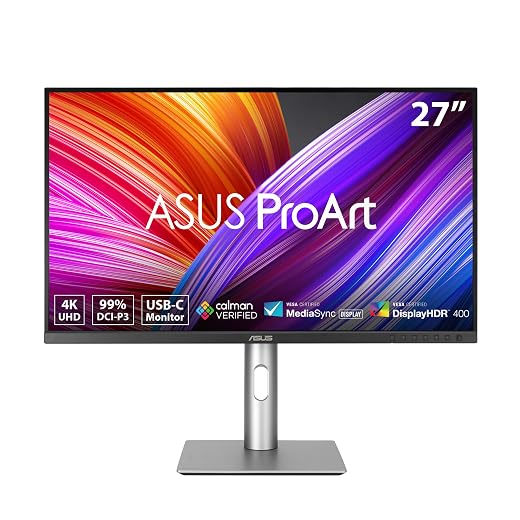
ASUS ProArt PA279CRV 27-Inch 4K Color Monitor
4K creator pick
|
4K, 27-inch | 99% Adobe RGB/P3 | Calman, ΔE <2 | High-resolution retouching | Check price |

ASUS ProArt PA278QV 27-Inch QHD Monitor
QHD value pick
|
QHD, 27-inch | 100% sRGB/Rec.709 | Calman, ΔE <2 | Web and video editing | Check price |

ASUS ProArt PA248QV 24-Inch WUXGA Monitor
Compact sRGB pick
|
1920×1200, 24-inch | 100% sRGB/Rec.709 | Calman, ΔE <2 | Small desks, sRGB work | Check price |
What “accurate” really means
Gamut and mode
sRGB is the dependable target for web delivery. Adobe RGB matters for managed inkjet print workflows; DCI-P3 is useful for video and P3-aware Apple/mobile output, not as a default editing mode.
Delta E
A low average Delta E suggests measured colors are close to target, but it does not guarantee every hue, gray step, or screen area behaves equally well.
Calibration and drift
Factory reports are a starting point. A colorimeter, a stable ICC profile, and periodic rechecks account for panel aging and changing white point.
Uniformity
Brightness and color temperature can vary from center to edges. This is especially visible when judging pale skies, seamless backdrops, or print-critical work.
Ambient light
Room light changes perceived contrast and white balance. Controlled, subdued lighting and a sensible luminance target make edits more repeatable.
For web-first photography, a monitor with a trustworthy sRGB preset, adjustable brightness, and calibration support is more valuable than the widest advertised gamut. Editing sRGB files in an unmanaged wide-gamut mode can make saturation look falsely intense.
Use Adobe RGB when the printer, paper profile, and editing application are all color-managed. Choose DCI-P3 for video or delivery to P3-oriented displays; otherwise, soft-proofing is more informative than simply viewing everything in P3.
Panel choice also has a workflow cost: OLED burn-in prevention for creative work deserves consideration when static toolbars and long editing sessions are routine.
The floor worth paying for
-
An IPS panel with a disciplined sRGB mode
At this price, expect IPS viewing stability, a usable factory-calibrated sRGB preset, and a stated Delta E claim. Wide-gamut coverage is valuable only when sRGB can be properly clamped for web work.
Look forSelectable sRGB mode, documented calibration target, and independent uniformity results where available.Avoid“100% sRGB” marketing with no preset behavior, Delta E specification, or calibration record. -
Enough pixels and adjustment for the desk
A 27-inch 4K panel gives the most comfortable space for retouching tools and fine detail; 27-inch QHD remains a sound value choice. Height, tilt, swivel, and pivot reduce the temptation to judge images from an off-axis position.
Look for4K at 27 inches when budget permits, plus height adjustment and VESA mounting.AvoidA fixed stand or low-resolution 27-inch panel chosen solely for a wide color-gamut claim.
Before ordering, confirm the current checkout price, return window, restocking-fee policy, and dead-pixel threshold; marketplace sellers may follow a different policy than the brand.
On arrival, inspect a full-screen black, white, red, green, and blue test within that window. Keep every included USB-C, DisplayPort, HDMI cable and the power supply until the panel is accepted. Download the model’s ICC profile, calibration report, and manual from the manufacturer—not a similarly named variant—and check that the claimed sRGB mode exists in the on-screen menu.
ASUS ProArt PA279CRV: 4K color work with a single-cable desk
01
Best for professional editors needing broad color coverage
At roughly $400, the PA279CRV is the professional-leaning choice when its price remains below the cap. Its 27-inch 4K canvas gives Lightroom, Photoshop, and Resolve more room for full-resolution inspection beside panels and timelines, while USB-C can carry display data, hub connectivity, and laptop charging through one cable.
It suits editors moving between a laptop and a fixed workspace who need credible wide-gamut coverage without stepping into dedicated reference-display pricing.
- 4K makes detailed retouching and multi-panel layouts comfortable
- Broad Adobe RGB and DCI-P3 coverage supports photo and video pipelines
- 96W USB-C reduces laptop-desk cable clutter
- Factory calibration offers a solid starting point
- No factory sample guarantees perfect panel uniformity
- Wide gamut needs color-managed applications and sensible output settings
- 60Hz suits editing, not motion-focused work
- Street price occasionally moves above the budget
In brief A remarkably complete editing monitor at the right sale price. Its convenience is real, but print matching still rewards calibration and disciplined soft-proofing.
The PA279CRV earns its place when it lands under $500: 4K detail, wide-gamut coverage, and 96W USB-C make a laptop-based editing desk feel substantially less compromised. Calman verification and a claimed ΔE below 2 are meaningful starting assurances, not a substitute for profiling the individual unit.
For print-critical work, calibrate to the paper and lab or printer profile, soft-proof in an ICC-aware application, and judge images under controlled light. That final step—not the badge alone—is what keeps a convincing screen edit from becoming a disappointing print.
ASUS ProArt PA278QV: disciplined sRGB editing on a sensible budget
Top choice for affordable, calibrated creative work
At roughly $230, the PA278QV is built for the work most online photographers actually deliver: sRGB web galleries, social files, and Rec. 709 video. Its Calman-verified, factory-calibrated approach makes it a reassuringly controlled first serious display, while the 27-inch QHD canvas leaves room for editing panels without demanding a premium workstation.
- Calman Verified; specified Delta E < 2
- Full 100% sRGB and Rec. 709 coverage
- Matte IPS panel limits distracting reflections
- Height, pivot, swivel, and tilt adjustment
- Strong value around $230
- QHD looks less crisp than 27-inch 4K
- No USB-C single-cable connection
- sRGB-focused gamut is limiting for wide-gamut print work
- Factory calibration still benefits from periodic profiling
The PA278QV makes the most sense when the final destination is an sRGB browser, client portal, or social platform—not a wide-gamut print pipeline. Its 2560 × 1440 panel is about 109 ppi, so fine retouching is less luxurious than on a 27-inch 4K screen, but the adjustable stand and reliable sRGB/Rec. 709 foundation make long editing sessions practical. For disciplined online delivery, this is one of the clearest value choices below $500.
- 16:10 adds useful vertical room
- Calman-verified, ΔE < 2 sRGB
- Height-adjustable ergonomic stand
- Excellent value near $200
- 1920 × 1200 limits fine retouching
- No wide-gamut workflow
- 24-inch canvas feels tight for large files
The extra 120 vertical pixels are the point. Lightroom’s filmstrip, Develop controls, and a portrait frame coexist more comfortably than on a 16:9 1080p panel, while browser previews retain useful page height. Its 1920 × 1200 resolution is not enough for sustained pixel-level retouching, however: fine masks, sharpening checks, and dense multilayer files demand more zooming and less visible canvas. For calibrated sRGB delivery in a limited workspace, it remains an unusually deliberate choice.

- 27-inch 4K IPS at an exceptionally low price
- Listed 100% DCI-P3 coverage and ΔE < 2 claim
- DP and HDMI plus PIP/PBP
- No supplied calibration report or measurement conditions
- sRGB clamp is not clearly documented
- Panel uniformity and after-sales support are unknown
- Stand and port specifications need listing-level confirmation
CUNPU’s listed ΔE < 2 figure is encouraging, but without a factory report, stated test target, or independent measurements, it cannot carry the same weight as documented calibration. Confirm that its on-screen controls offer a genuine clamped sRGB mode; otherwise wide-gamut output can make standard web images look over-saturated. A colorimeter can create an ICC profile, but it cannot guarantee good edge-to-edge uniformity. Buy only through a seller with a straightforward return window, test uniformity and grayscale promptly, and confirm the required DP/HDMI connection before committing.
Match the monitor to the final file
The PA279CRV suits photographers retouching high-resolution files, preparing print work, or building a cleaner laptop dock. Its 4K panel gives fine control over sharpening, masking, and dust cleanup; USB-C is valuable when one cable must carry display, data, and charging.
For galleries, client proofs, and social delivery, the PA278QV is often the more rational purchase. Its QHD resolution is less luxurious, but a dependable sRGB workflow matters more than extra pixels when most viewers use standard-gamut screens.
The PA248QV fits compact desks and portrait-heavy editing. Its 16:10 shape leaves useful room for toolbars, though its smaller, lower-resolution canvas is less comfortable for close retouching.
Choose the CUNPU 4K only when low-cost detail is the priority and the seller allows easy returns. Check its sRGB behavior before the deadline. An unmanaged wide-gamut mode can oversaturate ordinary web images, making an sRGB-clamped display the safer choice.
Set up the monitor so edits survive the trip to paper
-
1. Start with a clean signal path
Connect by DisplayPort or USB-C directly where possible, run the panel at its native resolution and refresh rate, and select the monitor’s ICC profile in the operating system. Avoid undocumented dock conversion, duplicate-display mirroring, or GPU “vivid color” controls while judging color.
-
2. Choose the gamut that matches delivery
Use the monitor’s clamped sRGB preset for web, client galleries, and most lab-bound files. Reserve a wide-gamut preset for Adobe RGB or P3 work only when the application is ICC-aware and the intended output actually supports that space.
-
3. Remove the picture tricks
Disable dynamic contrast, HDR simulation, blue-light modes, black equalizer, sharpening, and automatic brightness. Set a fixed white point—usually D65 for screen work—and a sensible gamma, commonly 2.2.
-
4. Match luminance to the room
Let the display warm up for 20–30 minutes, then target roughly 80–120 cd/m² for a normally lit editing space; 100 cd/m² is a strong print-oriented starting point. Keep daylight and room lamps consistent, because a bright screen is the usual reason prints look disappointingly dark.
-
5. Profile the actual panel
A colorimeter creates a profile for this unit in this room, correcting drift that factory reports cannot predict. Recalibrate every four to eight weeks, or sooner after a major room-light or display-setting change.
-
6. Proof the paper, not just the image
Soft-proof with the ICC profile for the chosen printer and paper, enable paper-white simulation when evaluating print appearance, and inspect out-of-gamut warnings before conversion. Paper surface and optical brighteners change both contrast and white point, so the selected home photo printer and paper combination needs its own accurate printer profile; an excellent monitor profile cannot compensate for a generic or mismatched print profile.
For print matching, edit under stable light and evaluate test prints under the same lighting in which they will be viewed.
Choose for the image’s destination
- Confirm the current price, dead-pixel policy, backlight uniformity, ports, and stand operation before the return window closes.
- Use the monitor’s sRGB mode for web delivery; profile and soft-proof when prints, client review, or color-critical publishing raise the stakes.
For a color-managed 4K desk, the ASUS ProArt PA279CRV is the strongest purchase: sharp enough for retouching, broad-gamut capable, and practical for a USB-C laptop workflow. For web-first work where reliable sRGB matters more than pixel density, the ProArt PA278QV remains the sensible value choice. The PA248QV suits tight desks and portrait-oriented editing, while the CUNPU 27-inch 4K is worth considering only when its delivered panel passes careful inspection.
Set the chosen display to the mode that matches delivery—usually sRGB for online photographs—and keep brightness at a repeatable, moderate level. Factory claims are a starting point, not a lifetime guarantee: during the return period, check for tinting and uneven luminance, then profile the display if the images will be judged against prints or on managed client workflows.