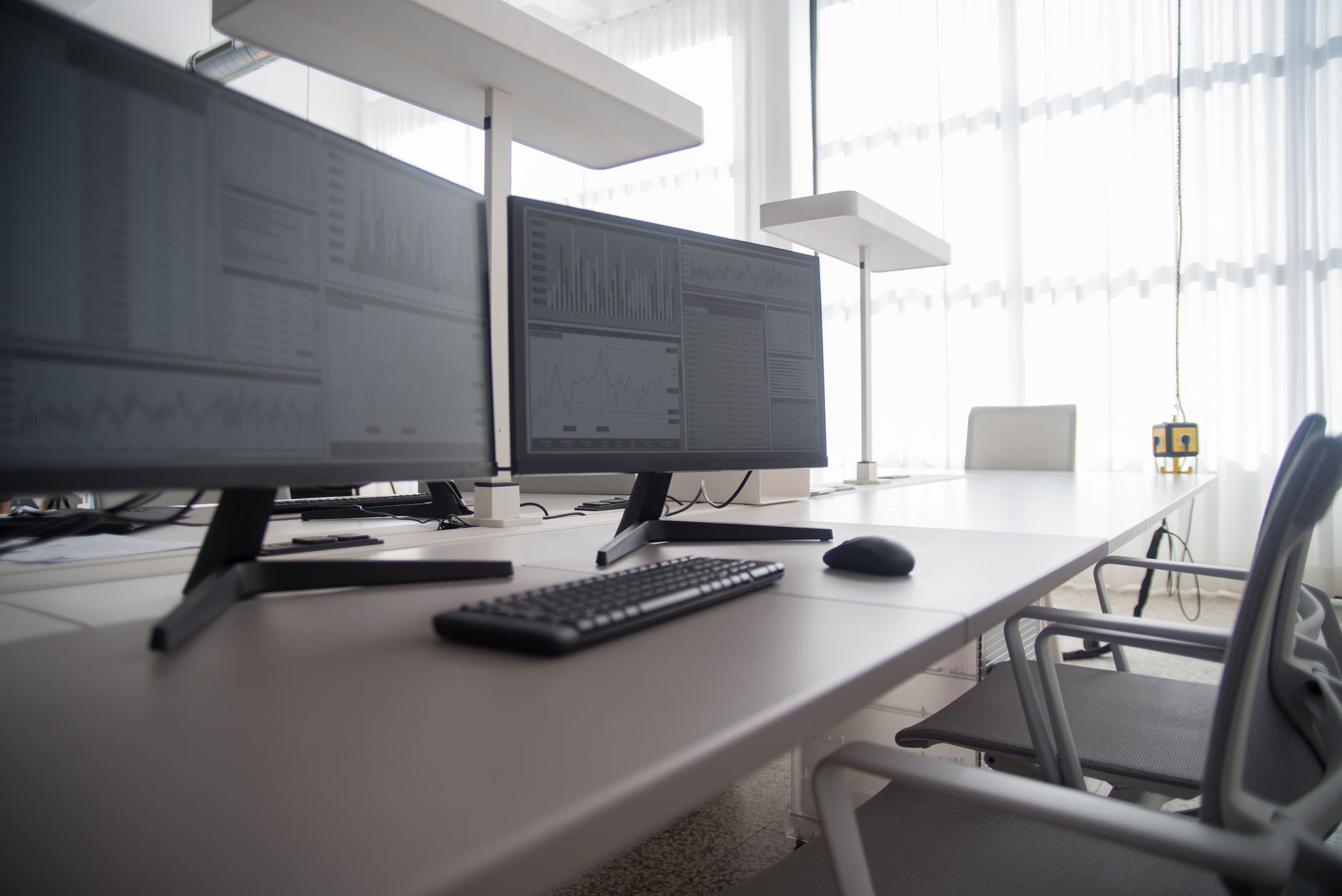
A spreadsheet should not leave the eyes and shoulders working overtime.
By mid-afternoon, dense rows begin to blur together, a formula is reread for the third time, and the neck has crept forward toward a screen that sits just a little too low. That familiar fatigue is rarely caused by screen size alone.
For spreadsheet-heavy work, text clarity matters as much as panel dimensions: an IPS display with stable viewing angles keeps small type and grid lines easier to track across the sheet. A matte, low-glare surface helps when daylight hits the desk, while sensible brightness prevents the harsh “white page” effect. Just as important, the monitor must fit the workstation. Height adjustment, tilt, and a stand that leaves room for a keyboard and documents make it easier to place the top of the screen near eye level and maintain a relaxed viewing distance. A good office monitor turns long columns from an endurance test into a calmer, more readable task.
- A 24-inch Full HD screen delivers roughly 92 pixels per inch—sharp enough for everyday spreadsheet text at a typical desk distance.
- For wide sheets, using 100–125% system scaling can preserve readable type without sacrificing practical workspace.
Pick the desk setup that fits



The details that decide whether a screen feels easy to use
-
Crisp type and useful height
A 24-inch 1080p panel is adequate at typical desk distance, but its roughly 92 ppi makes fine fonts less smooth than 1440p or 4K. A 27-inch 1440p display adds noticeably more rows and columns without making text uncomfortably small.
Look forIPS clarity, sensible scaling, and enough vertical pixels for the workbook.AvoidExpecting a larger 1080p screen to make small text sharper. -
Glare and off-centre clarity
A matte coating and IPS viewing angles keep pale cells, gridlines, and small type consistent as posture shifts. VA can deliver stronger contrast, but may show brightness or colour changes off-axis.
Look forMatte IPS for shared desks or frequent repositioning.AvoidA reflective surface opposite a window or bright lamp. -
Physical adjustment and connections
Visual comfort comes from the panel; ergonomics comes from placing it at the right height, tilt, and distance. Height adjustment or VESA mounting matters more than a slim bezel, while HDMI, DisplayPort, and USB-C determine how cleanly the work laptop connects.
Look forA height-adjustable stand or VESA mount, plus the required input.AvoidTreating tilt-only adjustment as a full ergonomic solution. -
Reliability over spec-sheet extras
For all-day work, stable wake-from-sleep behaviour, a solid warranty, and straightforward controls often matter more than high refresh rates. Check that the chosen port supports the computer’s native resolution and refresh rate.
Look forA proven office model with dependable support and cables included.AvoidPaying for gaming features that do not improve documents.
At 24 inches, 1080p remains a sensible value choice for ordinary spreadsheets and large interface scaling. It will not match the fine text edges or extra worksheet height of 27-inch 1440p and 4K options.
A better stand can relieve neck and shoulder strain, but it cannot add pixels; higher resolution improves visual breathing room, not posture by itself.
Dell 24 Plus S2425HSM for a better screen position
01
Best overall for comfortable, fluid spreadsheet sessions
The Dell 24 Plus S2425HSM is the strongest fit when spreadsheet discomfort starts in the neck and shoulders rather than in the workbook itself. Its stand allows height, tilt, swivel, and pivot adjustment, making it far easier to place the top of the panel near eye level, centre it with the keyboard, and reduce the habitual head turn caused by an off-centre screen.
The 23.8-inch matte Full HD panel is a sensible, compact desk companion, with TÜV 4-star eye-comfort certification and a 144Hz refresh rate that keeps ordinary scrolling unusually smooth. Full HD remains a limitation for dense financial models: it makes text comfortable at this size, but does not create the wide, multi-column workspace of a 1440p display.
- Four-way stand adjustment supports neutral posture
- Matte screen and eye-comfort certification suit long sessions
- 144Hz makes scrolling through rows feel smoother
- Built-in speakers reduce desk clutter
- 1920×1080 limits visible columns and side-by-side sheets
- No stated USB hub or USB-C connectivity
- 144Hz adds little to calculation-heavy work
Short take A notably accommodating stand makes this a comfort-first office monitor. It improves placement rather than expanding spreadsheet real estate.
For spreadsheet workers who keep raising, craning toward, or twisting around a fixed display, this Dell is the clear ergonomic choice. Its stand has the adjustment range that allows a screen to fit the worker, not the reverse. The trade-off is straightforward: Full HD is adequate and readable at 24 inches, but analysts needing more simultaneous columns should move to a higher-resolution panel.
Best value for smooth everyday office work
At around $90, the 23.8-inch Dell SE2426H keeps the essentials sensible: Full HD is familiar at this size, the matte IPS panel stays consistent when viewed off-centre, and the 144Hz panel makes scrolling through long sheets feel notably cleaner than a basic 60Hz display. It suits single-screen document work where dependable, uncomplicated viewing matters more than extra workspace.
Before treating the price as a clear win, buyers should confirm the listed stand adjustment and ports for the exact retailer configuration. This model is commonly described as tilt-only with two HDMI inputs; a missing height adjustment can cost more in comfort than the saving delivers.
- Matte IPS keeps text and colours consistent across the screen
- 144Hz refresh makes scrolling and cursor movement smoother
- TÜV 3-star eye-comfort certification supports long viewing sessions
- Two HDMI inputs can simplify a laptop-and-desktop desk
- 23.8-inch 1080p offers limited room for wide spreadsheets
- Tilt-only stand may require a monitor arm or riser
- No DisplayPort or USB hub listed
- 1ms figure is MPRT, not a typical office-performance advantage
A comfortable choice for consistent viewing angles
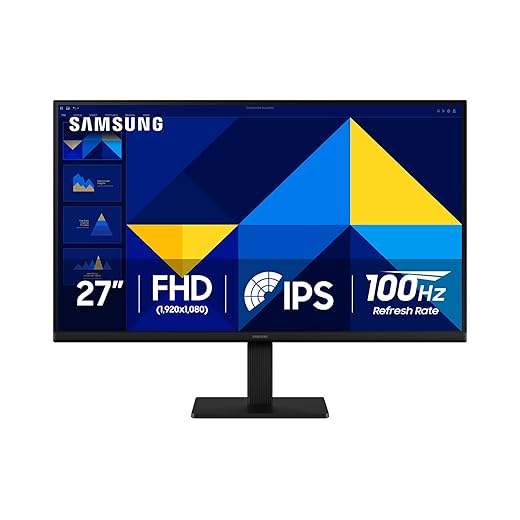
Samsung’s 27-inch S30GD Essential is the familiar, low-drama office-monitor route: a 16:9 IPS screen built to move comfortably between a spreadsheet, an inbox, browser research, and a video meeting. Its 178-degree viewing angle is useful when a colleague leans in, while the slim-bezel design keeps a multi-window desktop from feeling visually boxed in.
It suits a general workstation rather than a specialised finance or design desk. Before ordering, check the retailer’s exact SKU carefully: listings can differ on included stand adjustment and available inputs, two details that determine whether it works neatly with an existing laptop, dock, or desktop.
- IPS viewing angles keep colour and contrast steadier off-centre
- 100Hz refresh makes scrolling and window movement look smoother
- Eye Saver and flicker-reduction settings support long reading sessions
- 27-inch format gives email and browser work more breathing room
- Glossy finish can reflect windows and overhead lighting
- Listed 250-nit brightness is modest for a very bright office
- Stand adjustment is not confirmed in the supplied configuration
- Ports should be verified before relying on a one-cable laptop setup
Affordable large-screen clarity for spreadsheet-heavy work
At around $80, the Philips 241V8LB is the sensible low-cost pick for a fixed, mostly straight-on workstation. Its 23.8-inch Full HD format keeps text at a familiar, readable scale, while the 100Hz panel makes pointer movement and scrolling feel a little less abrupt than on basic 60Hz office screens. It suits a single-screen spreadsheet desk where value matters more than extensive adjustment.
- VA’s 3000:1 contrast gives black text and dark accounting interfaces satisfying separation.
- 100Hz refresh makes scrolling long sheets and moving between cells feel smoother.
- Flicker-Free and LowBlue modes are useful comfort extras at this price.
- VESA mounting can add the ergonomics the included setup may not provide.
- VA colour and gamma shift more noticeably off-centre than IPS, especially across pale spreadsheet fills.
- Full HD limits the number of columns visible beside a document or browser.
- The glossy screen finish can reflect windows and overhead lighting.
- 250-nit brightness is best suited to controlled indoor light.
Know when a bigger screen is not enough
A 24-inch Full HD display can be comfortable for ordinary sheets, but it cannot show much more of a dense workbook. If columns constantly disappear, the meaningful step is usually 27-inch QHD (2560 × 1440), which adds roughly 78% more pixels than Full HD. For wide financial models, a 34-inch ultrawide or a second display may be more effective than simply moving to 27-inch 1080p.
Check the whole signal chain
Native resolution matters: a QHD panel should normally run at 2560 × 1440, not a softer scaled Full HD signal. Operating-system scaling controls interface size, while spreadsheet zoom controls cell size; reducing one will not create the same usable workspace as adding pixels.
Before ordering, verify:
- Laptop output: USB-C must support DisplayPort Alt Mode; older HDMI versions or docks may limit resolution or refresh rate.
- Ports and cable: Match HDMI, DisplayPort, or USB-C at both ends, and confirm whether the monitor includes the needed cable.
- Refresh rate: 75–100Hz makes scrolling smoother, but resolution and panel quality matter more for cells and text.
- Dual screens: Confirm the laptop can drive two external displays at the intended resolutions, especially through a single dock.
A port mismatch is easier to prevent than to troubleshoot after the monitor arrives.
-
Set the screen at a relaxed viewing distance
Place a 24-inch display roughly 50–70 cm (20–28 in) away. Set the top line of the active worksheet at, or slightly below, eye level so the gaze naturally falls toward the centre of the screen.
-
Remove reflections before changing brightness
Turn the panel away from windows and bright lamps; a matte screen helps, but cannot cancel a direct reflection. Use moderate brightness and steady room lighting rather than driving the display to maximum.
-
Keep native resolution, then tune scale
Run 1920×1080 monitors at their native resolution. If text feels cramped, use 125% operating-system scaling before lowering resolution, then adjust spreadsheet zoom—often 90–110%—to keep columns legible.
-
Keep row and column context visible
Freeze header rows and identifier columns before scrolling through large tables. Split panes when comparing distant sections, and reserve bold fills or conditional formatting for exceptions rather than every cell.
-
Give a second screen—and the numpad—a defined job
A second display works best for source documents, email, or a reference dashboard while the primary screen holds the active workbook. Frequent numeric entry is noticeably quicker with a full-size numpad keyboard for spreadsheet work, especially for accountants and analysts.
A few final checks before checkout
Is IPS always the better choice for spreadsheet work?
Usually, IPS is the safer choice when the screen is viewed slightly off-centre or shared with a colleague, because colour and brightness shift less. A good VA panel can still suit a straight-on, budget-focused desk, especially if its text rendering and stand meet the need.
Is 4K worthwhile on a 24-inch office monitor?
It can make fine text exceptionally crisp, but it often requires operating-system scaling and delivers less usable benefit than QHD or 4K at 27 inches. Native-resolution support from the work laptop and its dock should be confirmed first.
Can a monitor arm replace a weak stand?
Often, provided the exact model has a VESA mounting pattern and the arm supports its weight without the stand. Check that removing the stand does not expose awkward ports or require a proprietary adapter.
Which cable should be purchased?
Use the connection that supports the computer’s intended native resolution and refresh rate; USB-C docks may impose their own limits. Confirm the supplied cable, port versions, return window, and the employer’s device or security-policy compatibility before ordering.
Match the monitor to the strain
- An arm can rescue a tilt-only monitor, but it cannot add worksheet width or replace a missing laptop input.
For neck and shoulder fatigue caused by a too-low or poorly positioned screen, the Dell 24 Plus Adjustable FHD Monitor is the clear pick: its fully adjustable stand addresses the problem at its source. For tight budgets where readable text and broad viewing angles matter most, choose the Dell 24 IPS FHD Monitor. The Samsung Essential IPS Business Monitor best suits offices wanting a larger, smoother general-purpose screen, while the Philips 24-Inch FHD VA Monitor is the value choice for head-on work where stronger contrast helps.
A monitor cannot compensate for a cramped desk or a screen placed at the wrong distance. Before ordering, confirm the desk has room for the stand or arm, set the screen roughly an arm’s length away with the top near eye level, and verify the laptop’s video port, charging needs, cable, and supported native resolution.