
A 4K badge does not guarantee Mac-like text.
A 27-inch 4K screen can make a Mac’s menu bar feel either too large or faintly soft—even when the panel is otherwise excellent. The missing piece is pixel density, not merely resolution. At roughly 163 pixels per inch, 27-inch 4K lands between Apple’s comfortable “Retina” scaling targets: native-sized text is tiny, while the popular scaled setting asks macOS to render an in-between image and resample it.
A 27-inch 5K display reaches about 218 ppi, allowing the familiar 2560 × 1440 workspace at clean 2× scaling. Each interface pixel maps neatly to four panel pixels, so code edges, document type, and thin menu glyphs stay crisp without sacrificing sensible proportions. 4K can still work well, particularly at 24 inches or with carefully chosen scaling, but its compromise is real.
5K for native-feeling scale; 4K for value


Why 5K maps so cleanly to macOS
Physical pixels
These are the monitor’s actual dots: 5K is 5120 × 2880, while 4K is 3840 × 2160. More physical pixels can be used either for a larger workspace or for finer drawing of the same interface.
Logical points
macOS lays out windows, menus, and type in points rather than directly in pixels. Retina scaling draws each point with multiple pixels, keeping curves and small text smooth.
The 5K 2× match
At the familiar 2560 × 1440 workspace, a 5K panel supplies exactly two physical pixels in each direction for every logical point: 5120 ÷ 2 by 2880 ÷ 2. Text gets a clean 2× pixel grid without changing the apparent size of the interface.
What 4K does at 2×
A 4K panel also has a perfect 2× mode, but its logical workspace becomes 1920 × 1080. That is notably roomier than older Mac screens in sharpness, not in desktop area.
Why “looks like” modes vary
Choosing a 2560 × 1440-looking workspace on 4K requires macOS to render at a larger intermediate resolution and resample it to the panel. It is often attractive, but not the one-to-one 2× mapping that makes 5K especially crisp.
A 4K display is not inherently blurry; at its native 2× setting, it is extremely clean. The trade-off is the 1920 × 1080 logical desktop.
A 27-inch 5K screen preserves the roomier 2560 × 1440 logical desktop at the same integer 2× ratio. That pairing is why the BenQ MA270S and KTC H27P3 suit Mac users who want familiar-sized text and full workspace without compromise. The Dell S2725QC and LG 27US500-W make more sense when price matters more than that exact relationship.
The 27-inch 5K reference point
At 27 inches and 5120 × 2880, a 5K panel lands near 218 pixels per inch—the density at which macOS’s 2× “Looks like 2560 × 1440” mode feels especially natural. Menus, code, spreadsheets, and finely set body text stay sharply resolved without shrinking the working area into a laptop-like layout.
That is why the BenQ MA270S and KTC H27P3 establish the meaningful comparison point here. Their advantage is not merely more pixels; it is a clean relationship between macOS rendering and a generously sized desktop.
Panel quality still matters. Better contrast can make dark text appear more defined, while matte coatings, subpixel behavior, brightness, and glare affect perceived crispness. Viewing distance matters too: sitting unusually close can expose pixel structure; sitting farther away reduces the practical benefit. Yet at a normal desk distance, none of those refinements overturn the central result: 27-inch 5K is the clearest external-Mac scaling target.
BenQ MA270S: a 5K Mac desktop for demanding creative work
01
Best for creators seeking sharp, Mac-tuned visuals
The BenQ MA270S is built around the part of a Mac setup that is hardest to compromise on: a 27-inch, 5120 × 2880 desktop that presents macOS at the clean 2× scale. Type, vector edges, palettes, and dense editing panels retain the settled, native-looking character associated with a 5K iMac-class display.
Its Nano Gloss IPS panel and Mac-focused color tuning make it a particularly persuasive fit for photographers, designers, and anyone reading or writing on screen all day. Dual Thunderbolt 4 ports add a tidy one-cable desk arrangement, with up to 96W charging, while daisy-chaining and Smart KVM suit a studio moving between two Mac systems.
This is a premium primary display, not an economical way to add a casual second screen. Shoppers whose priority is calibrated color on a tighter budget should also consider more affordable displays for color-critical work.
- 218 ppi 5K makes macOS text exceptionally clean
- Mac color tuning and wide P3 gamut suit creative workflows
- Thunderbolt 4 carries display, data, and up to 96W power
- Daisy-chain and KVM features help multi-Mac desks
- Fully adjustable stand adds real ergonomic flexibility
- Around $1,000 is steep for ordinary office use
- 60Hz refresh rate is not aimed at gaming or motion work
- Premium 5K resolution offers limited value as a secondary display
Quick take A polished 5K Mac companion for work where sharp interface rendering and a clean creative workflow matter more than minimizing cost.
For a Mac-centered creative desk, this is the strongest all-round choice. Its 5K panel preserves the workspace and text clarity that make 27-inch macOS scaling feel right, while Thunderbolt 4 connectivity keeps the setup unusually practical.
The price makes sense when the display is the main work surface for images, layout, and long reading sessions—not when it simply needs to fill spare desk space.
KTC H27P3: 5K clarity with a gaming switch
Best value for high-resolution Mac setups
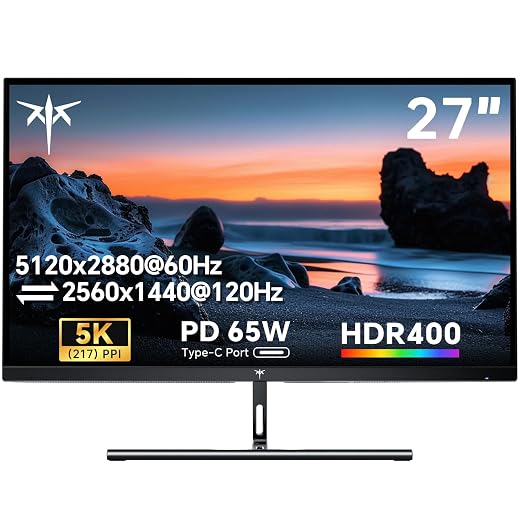
The KTC H27P3 takes the same 27-inch, 5120 × 2880, roughly 217-ppi route that makes macOS text look properly dense at 2× scaling—at a far lower entry price than premium Mac-first displays. It suits a desk that is primarily for documents, code, and photo work but occasionally becomes a gaming station: its dual-mode design offers 5K at 60Hz or 2560 × 1440 at 120Hz.
That is not a lower-resolution compromise for everyday Mac work; 5K is the point. The 1440p/120Hz mode is a separate convenience mode for motion. Before committing, buyers should confirm the desired Mac, cable, and input combination actually exposes the intended 5K/60 mode, and check current firmware, port behavior, support coverage, and return conditions.
- 27-inch 5K preserves clean 2× macOS scaling
- Dual mode separates sharp work from 120Hz play
- 65W USB-C can simplify a laptop desk
- Matte IPS panel and VESA support add flexibility
- 5K is limited to 60Hz
- 65W may not sustain every power-hungry MacBook
- HDMI, DisplayPort, and USB-C modes need careful verification
- Budget-brand support and panel consistency merit scrutiny
The H27P3 is the value play for genuine 27-inch 5K Mac sharpness, not a 4K stand-in. Its 1440p/120Hz option makes sense on a mixed-use desk, but it should be treated as a distinct mode rather than a way to get 5K gaming. Confirm refresh limits, cable requirements, USB-C charging, firmware, color uniformity, and the seller’s return policy before purchase.
A practical 4K hub for mixed Mac days
A versatile choice for work, media, and gaming
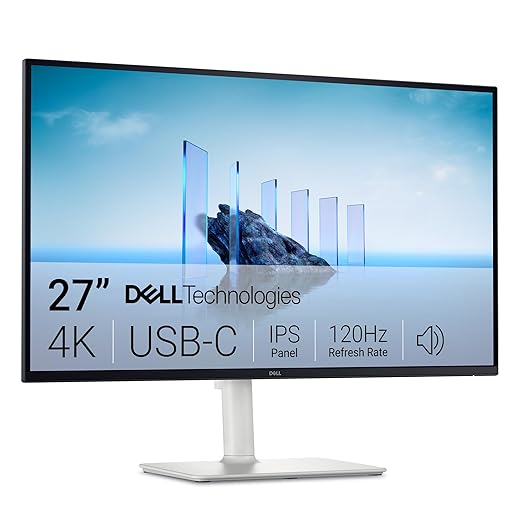
The Dell S2725QC is the sensible alternative when a single USB-C-connected screen needs to cover documents, video, casual gaming, and everyday office work without 5K pricing. Its 27-inch 4K panel is not trying to replicate the 5K Mac experience; it is a flexible, well-equipped desktop display for those comfortable choosing their preferred balance of interface scale and workspace.
- USB-C convenience suits a clean, one-cable desk
- 4K IPS panel provides crisp-looking text at sensible scaled settings
- 120Hz refresh makes scrolling and motion noticeably smoother
- 99% sRGB coverage fits web, office, and general media work
- Strong value around $290
- No 5K-style 2560 × 1440 workspace at exact 2× scaling
- 1920 × 1080 HiDPI mode leaves substantial desktop space unused
- Larger effective workspaces rely on macOS scaling rather than integer 2× mapping
- 350-nit brightness is adequate indoors, not exceptional for bright rooms
For mixed-use Mac setups, the S2725QC offers an unusually rounded specification for the money, including USB-C connectivity, 4K, and 120Hz. It is the value choice, not the scaling purist’s choice. Those who need a roomy desktop with perfectly native-feeling macOS text and controls should still choose 27-inch 5K; everyone else can get a polished daily driver here for far less.
LG 27US500-W: a low-cost step up from 1080p
- 4K makes text markedly cleaner than 1080p
- Matte IPS panel suits everyday reading
- DisplayPort and HDMI keep setup simple
- Reader Mode and flicker reduction help long sessions
- No USB-C input or laptop charging
- 60Hz only
- At 27 inches, 4K is about 163 ppi—not Retina-class
- Scaled 1440p-like space is softer than on 5K
For roughly $220, the LG 27US500-W is a credible way to make a Mac desktop look substantially more refined than a basic office screen. Its cleanest exact 2× mode presents a 1920 × 1080 workspace; choosing more room through macOS scaling introduces some softness. It is a meaningful upgrade from 1080p, not a substitute for the relaxed sharpness and 2560 × 1440-class workspace of 27-inch 5K.
A 4K “2560 × 1440” desktop is not free sharpness
It gains the roomier workspace, but not 5K’s exact 2× pixel mapping.
macOS draws that mode at a larger virtual resolution, then resamples it down to the panel’s 3840 × 2160 pixels. The result is generally good, yet fine letter edges can be fractionally softer than on a 5K screen.
Small, dense text exposes it more readily than large interface elements or video.
Code, spreadsheets, footnotes, legal documents, and long writing sessions repeatedly present thin strokes at small sizes. A slight loss of edge definition can make text feel less settled over a full workday.
It remains the sensible value and flexibility choice, especially in the Dell and LG class.
Choose 4K when lower cost, 120Hz, or general-purpose use outweighs perfect text rendering. Choose 5K when the monitor is chiefly a surface for reading, writing, coding, or detailed layout work.
Set up the connection before judging the panel
-
Use the right input
For 5K, prefer Thunderbolt or USB-C with a cable rated for the required bandwidth. A 4K display can use USB-C, DisplayPort, or HDMI, but adapter limits can reduce refresh rate or resolution.
-
Confirm the actual signal
In System Settings > Displays, select the monitor and verify its native resolution and intended refresh rate. Then check the Mac’s System Information > Graphics/Displays to confirm the negotiated mode.
-
Choose scaling deliberately
Select the default 2× mode on a 5K panel. On 4K, test the default 1920 × 1080-style workspace before choosing a roomier scaled mode; the latter trades some text precision for space.
-
Treat extras as separate requirements
Sharp text needs only a proper video path. One-cable charging, USB hub access, Ethernet, KVM switching, and a webcam each depend on the monitor, cable, and Mac port’s data and power capabilities.
-
If the display is missing, simplify
Connect directly to the Mac, disconnect docks and adapters, try another certified cable or port, and power-cycle the display. Then consult practical HDMI detection fixes for external monitors when HDMI is involved.
A monitor may light up while still receiving a lower-resolution or lower-refresh signal than intended.
USB-C describes the connector, not its capabilities. A cable may carry charging or USB data yet lack the video bandwidth needed for 5K. For the BenQ or KTC, confirm the Mac model, cable specification, and display documentation together. The Dell’s USB-C convenience and the LG’s separate video connection do not change the underlying pixel-density trade-off.
Choose the pixels before the extras
- For text-heavy Mac work, 27-inch 5K is the upgrade that changes daily comfort—not a higher refresh rate or a longer port list.
- A 4K model can still be excellent value, but its scaling trade-off should be accepted deliberately.
For uncompromised Mac text, choose a 27-inch 5K display: the BenQ MA270S is the complete professional option, while the KTC H27P3 brings the same native-fit sharpness at a lower entry price. Both preserve the spacious 2560 × 1440 desktop at clean 2× scaling.
Choose the Dell S2725QC when USB-C convenience, 120Hz motion, and flexible everyday use matter more than perfect scaling. Choose the LG 27US500-W for the least expensive credible 4K upgrade. When reading and writing occupy the day, native pixel fit matters more than headline extras.