
The best monitor is the one that makes the most frequent task feel effortless.
A spreadsheet open beside a video call can make a glossy 4K, 160Hz spec sheet feel strangely irrelevant. A monitor earns its place through the work done on it most days: text clarity and adjustability for long office sessions, high refresh and variable refresh for competitive games, or a sensible balance for a shared desk.
Resolution, panel type, ports, stand movement, and refresh rate should be read as a system—not a race for the biggest number. A powerful gaming PC can exploit 4K at high refresh; a work laptop may benefit more from USB-C charging and a pivoting stand. Prioritize the daily bottleneck first.
- At 27 inches, QHD is the practical sweet spot for sharp text without demanding a high-end graphics card.


Pick the job the monitor must do best
-
Work-first
Best for documents, spreadsheets, coding, and long reading sessions. Prioritize text clarity, screen space, adjustability, and sensible connectivity.
Best fit27-inch 4K or a 34-inch ultrawide, with a height-adjustable stand and USB-C if a laptop is central.Trade-off to avoidPaying for extreme refresh rates while accepting fuzzy text or poor ergonomics. -
Gaming-first
For competitive or fast-moving games, motion clarity matters more than maximum pixel count. The graphics card must also be able to feed the chosen refresh rate.
Best fit144–240Hz, fast response times, adaptive sync, and a resolution the PC can drive consistently.Trade-off to avoidA high-resolution panel that forces games into low frame rates. -
Balanced desk
A mixed setup benefits from a panel that is sharp enough for work and quick enough for games without chasing either extreme.
Best fit27-inch 1440p at 144–180Hz: the practical middle ground for many PCs.Trade-off to avoidSpecialist features that inflate cost but go unused. -
Console or color-critical
Console play needs HDMI 2.1 for 4K/120 support; photo and video work needs measured color accuracy and useful gamut coverage.
Best fitFor consoles, HDMI 2.1; for color work, factory calibration and appropriate sRGB or wide-gamut modes.Trade-off to avoidAssuming a vivid, wide-gamut screen is automatically accurate.
Choose a single requirement that cannot be compromised: 4K text sharpness, 240Hz motion, HDMI 2.1, or reliable color. Every monitor sacrifices something—price, contrast, speed, ports, or pixel density. A clear deal-breaker makes those sacrifices easy to judge.
Match pixels to desk distance
A larger panel is not automatically easier to use. What matters is pixel density: how tightly the pixels are packed, usually measured in pixels per inch (ppi). Higher density makes letters, spreadsheet lines, and photo detail look smoother; lower density makes the same pixels more visible at close range.
The dependable desk-size pairings
- 24-inch 1080p (about 92 ppi): A sensible budget choice for everyday work and esports gaming. At a typical desk distance of roughly 60–75 cm (24–30 inches), text is usable but not especially crisp. It suits fast, affordable 1080p graphics performance, though large documents and dense creative work can feel cramped.
- 27-inch 1440p (about 109 ppi): The broadest sweet spot. It provides noticeably cleaner text and more workspace than 1080p without making interface elements uncomfortably small. At 70–85 cm (28–34 inches), this size is comfortable for mixed office work, gaming, and general editing.
- 27- to 32-inch 4K (about 138–163 ppi): Best for sharp text, high-resolution images, and fitting several windows on screen. A 27-inch 4K display is exceptionally crisp but commonly benefits from operating-system scaling; 32-inch 4K offers larger, easier-to-read elements and works well slightly farther back, around 75–95 cm (30–38 inches).
For gaming, 4K also demands far more graphics power. A 27-inch 1440p high-refresh monitor is often the more balanced choice, while 4K earns its premium when detail and workspace matter more than maximum frame rate.
Make the workday easier first
A monitor used for documents, browser tabs, and video calls is judged over eight-hour stretches, not by a single impressive spec. Text clarity, a low-glare surface, a usable stand, and simple laptop connection usually matter more than a very high refresh rate.
Look closely at the everyday details
For a 27-inch desktop display, 2560 × 1440 is a strong practical baseline: spreadsheets have room to breathe and text remains comfortably defined at typical desk distance. A matte coating is especially valuable opposite a window or under overhead lights; it diffuses reflections instead of turning dark text into a mirror.
The stand should provide height adjustment at minimum, with tilt and swivel helpful on shared desks. Pivot is worthwhile for long documents or code. If the supplied stand is limited, check for VESA mounting before assuming an arm will solve the problem.
Treat ports as part of the purchase
USB-C can make a laptop setup feel dramatically tidier, but its capabilities vary. Confirm that the port carries video, delivers enough charging power for the laptop, and—where needed—offers USB data for peripherals. HDMI and DisplayPort remain useful for a desktop, dock, or second machine.
Ultrawides suit side-by-side documents and timelines, but they are not automatically better. Their width can crowd a shallow desk, complicate window sharing in video calls, and leave some business software or older games with awkward layouts. A conventional 16:9 screen is often the simpler shared-workstation choice.


Choose speed the system can sustain
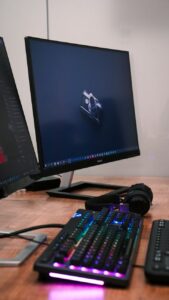
A higher refresh rate redraws the image more often: 144–180Hz is a substantial step up from 60Hz for cursor movement, scrolling, racing, and most competitive games. 240Hz and beyond chiefly suit players chasing every timing advantage in esports titles—and require a PC that can regularly produce similarly high frame rates at the chosen resolution.
At 1440p, a midrange system may deliver 70–120 fps in demanding new games while exceeding 180 fps in lighter competitive titles. Adaptive Sync is valuable here: it matches the panel’s refresh to fluctuating frame rates, reducing tearing and stutter. It cannot create frames the graphics card has not rendered.
Do not take “1 ms” at face value
That figure is commonly measured in an aggressive overdrive mode, not across every transition. Better reviews test response times, overshoot (bright or dark halos behind moving objects), and input lag at several refresh rates. A monitor can advertise 1 ms yet look smeary at dark transitions, or look sharp only with overdrive set so high that inverse ghosting appears.
Before buying, check whether motion stays clean at 60Hz, 120Hz, and maximum refresh—not merely at a headline setting. Also verify the port limits: an HDMI input may support a lower maximum refresh than DisplayPort.
Budget 1440p high-refresh option
This 27-inch 2560×1440 Fast IPS model lists up to 200Hz, with Adaptive Sync and a 120% sRGB claim. Its listed connections matter: DisplayPort 1.2 reaches up to 180Hz, while HDMI 2.0 reaches up to 144Hz. The stated 1 ms specification should be treated as a claim rather than proof of clean motion; independent response-time testing is worth seeking out.
For single-player games, stable image quality at 90–144 fps can be more satisfying than forcing 200 fps with major visual compromises. For competitive shooters, lower settings and a 180Hz-or-faster display can make sense—provided the PC sustains that rate in the actual game, not only in a benchmark.
The sensible one-monitor choice
For a desktop that has to cover spreadsheets, browser-heavy work, and evening games, a 27-inch 1440p monitor running at 144–180Hz is the safest default. Text remains comfortably sharp at normal desk distance, the screen has enough room for side-by-side windows, and modern midrange graphics cards can drive demanding games at satisfying frame rates.
This class also avoids two common mismatches: 1080p can look coarse on a 27-inch work screen, while 4K asks far more of the GPU. A 1440p high-refresh panel is therefore the better single-screen purchase when gaming matters but is not the livelihood.
When 4K is worth the extra demand
27-inch 4K at 144Hz or higher makes sense when detailed text, photo work, video editing, or dense design layouts are the primary concern—and the PC can sustain the desired game settings. It delivers visibly finer text and more editing precision, but high-refresh 4K gaming often requires a powerful graphics card, sensible settings, or upscaling.
The deciding rule is simple: buy around the task that cannot tolerate compromise. A competitive player should favor attainable frame rates and motion clarity. A person reading, writing, or editing all day should favor pixel density, workspace, and comfort; games can then be tuned to suit the hardware.
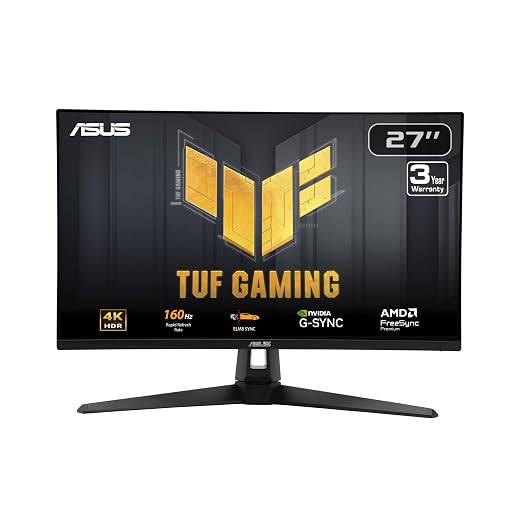
4K option for powerful PCs
This 27-inch Fast IPS display pairs 3840 × 2160 resolution with a 160Hz refresh rate. G-SYNC Compatible and FreeSync Premium support help reduce tearing, while HDMI 2.1 supports up to 4K/120Hz for consoles. Its 95% DCI-P3 gamut is a useful plus for vivid games and color-conscious work.
A panel label is only the starting point
IPS is the safest all-round choice, not an automatic winner.
It typically combines wide viewing angles, accurate colour, and clean motion. Yet contrast, backlight uniformity, and response tuning vary sharply by model.
VA usually produces deeper blacks than IPS, making dark games and films more convincing.
Some VA panels have slow dark-pixel transitions, visible as black smearing. Results at the intended refresh rate show whether that trade-off is noticeable.
OLED delivers exceptional contrast and extremely fast pixel response.
Its pixel layout and brightness limiting can matter for text-heavy work, while fixed desktop elements need care. OLED burn-in safeguards for workdays reduce the risk.
Check measured contrast, response times—including dark transitions—brightness behaviour, and text clarity. Two monitors with the same panel type can look and feel markedly different.
Check the connections before checkout
A monitor’s port list is not its real capability. Check the manual or a tested review for the maximum resolution, refresh rate, HDR, and VRR supported on each input. DisplayPort is usually the safest PC connection for high-refresh gaming; an HDMI socket may be limited to a lower bandwidth version, even on an otherwise premium display.
USB-C deserves the same scrutiny. One cable can carry video, data, and laptop charging, but power delivery varies widely: 65W suits many thin laptops, while larger models may need 90–100W or their own charger. Confirm whether the USB hub remains active with the desired input. A built-in KVM is useful only if it switches both video sources and the connected keyboard, mouse, and webcam reliably.
PS5 needs an explicit 4K 120Hz check
For dependable PS5 4K at 120Hz, the monitor needs a tested HDMI 2.1 FRL-capable input, the supplied or certified Ultra High Speed HDMI cable, and documented acceptance of the console’s 4K/120 signal. It should also support PS5 VRR if tear-free variable refresh matters. “HDMI 2.1” alone is not enough: some screens reserve full bandwidth for one port or accept 4K/120 but disable HDR, VRR, or local dimming in that mode. Test reports and the monitor’s supported-timing table settle this before ordering.
Wide color is not the same as accurate color
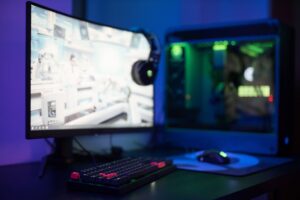
A wide-gamut display can show richer greens and reds than standard sRGB, which makes games, video, and desktop wallpapers look striking. That capability does not guarantee accuracy: without a good sRGB clamp, ordinary web images and office graphics may look conspicuously oversaturated.
For photo, print, and design work, look for a usable sRGB mode, credible factory calibration, and published measurements such as Delta E (lower is better; under 2 is a strong target). Panel uniformity also matters: a screen can be accurate at its center yet show a warmer, dimmer edge that complicates retouching. The best affordable displays for photo editing pair these basics with results that hold up in testing.
Office buyers rarely need wide gamut or a calibration report; comfortable brightness, text clarity, and ergonomics matter more. Gamers should prioritize motion handling and contrast unless color-critical creative work shares the screen. Calibration hardware is worthwhile when edits must match other displays or prints, not merely because a monitor advertises 99% coverage.
Make the monitor work as promised
-
Measure the real desk footprint
Check panel width, stand depth, viewing distance, and arm clearance—not only the quoted screen size.
-
Verify the whole signal chain
Confirm the computer or console, dock, cable, and chosen input can carry the target resolution and refresh rate.
-
Read the return terms closely
Check the dead-pixel policy, return window, restocking fee, and who pays return shipping before opening the box.
-
Use the right connection first
A direct DisplayPort, HDMI 2.1, or full-featured USB-C cable often avoids the bandwidth limits introduced by older cables and hubs.
-
Set the advertised mode manually
Select native resolution and maximum refresh rate in the operating system or console, then enable adaptive sync and install firmware updates if available.
Keep the packaging until the screen has been tested for uniformity, stuck pixels, sleep/wake behavior, and port reliability.
- The advertised specification matters only when every link in the setup can support it.
- A short return window is the time to test the issues that are hard to spot in a showroom.
A good monitor purchase ends with a fit check, a compatible connection, and a few minutes in the settings menu. Native resolution, full refresh rate, and the correct color mode turn a promising specification into the experience that was paid for.